Installation

Windows

  1. Download the SpeechLive Desktop App on your computer.

    [Note]Note
    • The SpeechLive Desktop App is only available for Windows 10 (64-bit) and Windows 11 (64-bit).

    • The SpeechLive Desktop App can also be installed in virtual environments. The installation guide for virtual environments covers this in more detail.

  2. Start the downloaded installation file and follow the installation process.

    [Note]Note

    To install the application on your computer, you need administrator rights.

  3. Start the SpeechLive Desktop App from the Windows start menu.

  4. Enter your SpeechLive credentials to sign in.

Multi-user installation

From version 3.6.0 onwards, administrators can deploy the SpeechLive Desktop App to multiple users within Windows environments. This allows for streamlined rollouts using tools such as Group Policy or Microsoft Intune. To get started, use the provided .msi installer and refer to Microsoft's official documentation for detailed guidance on deploying applications organisation-wide.

Mac

  1. Download the SpeechLive Desktop App on your computer.

    • Click here to download the app for Mac computers with Apple silicon

      • To check your processor, click on the Apple menu and choose About This Mac. Check the Chip information, if it displays Apple, you have an Apple silicon chip.

    • Click here to download the app for Mac computers with Intel processor

      • To check your processor, click on the Apple menu and choose About This Mac. Check the Chip information, if it displays Intel, you have an Intel processor

      • As a general rule, if your Mac is older than 2020, it most likely has an Intel processor.

  2. Start the downloaded installation file and follow the installation process.

    install-desktop-app-on-mac.gif
  3. Start the SpeechLive Desktop App from the Dock.

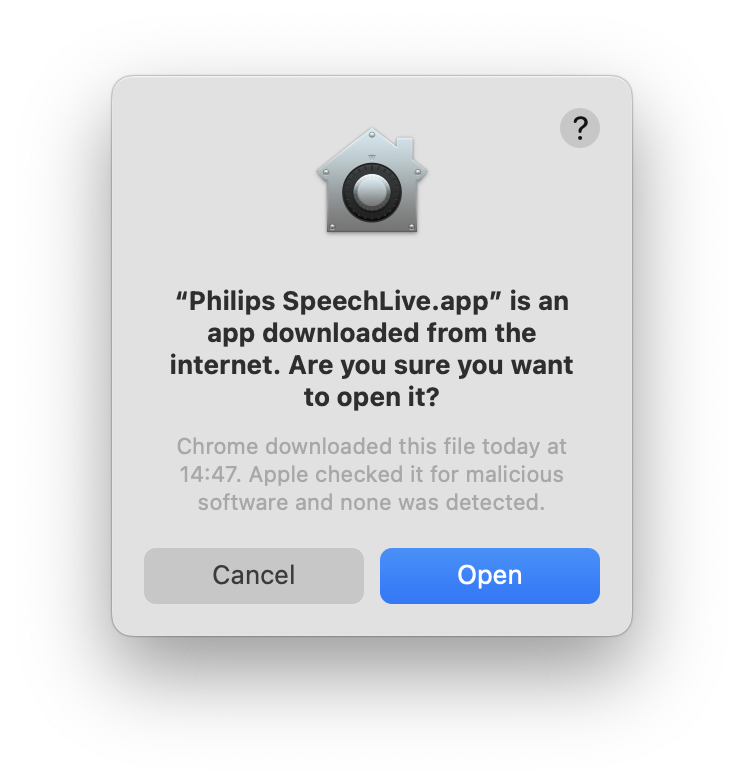
  4. You will get a security question before you can open the app, please confirm by clicking Open.

    desktop-app-mac-security-question.png
  5. Enter your SpeechLive credentials to sign in.

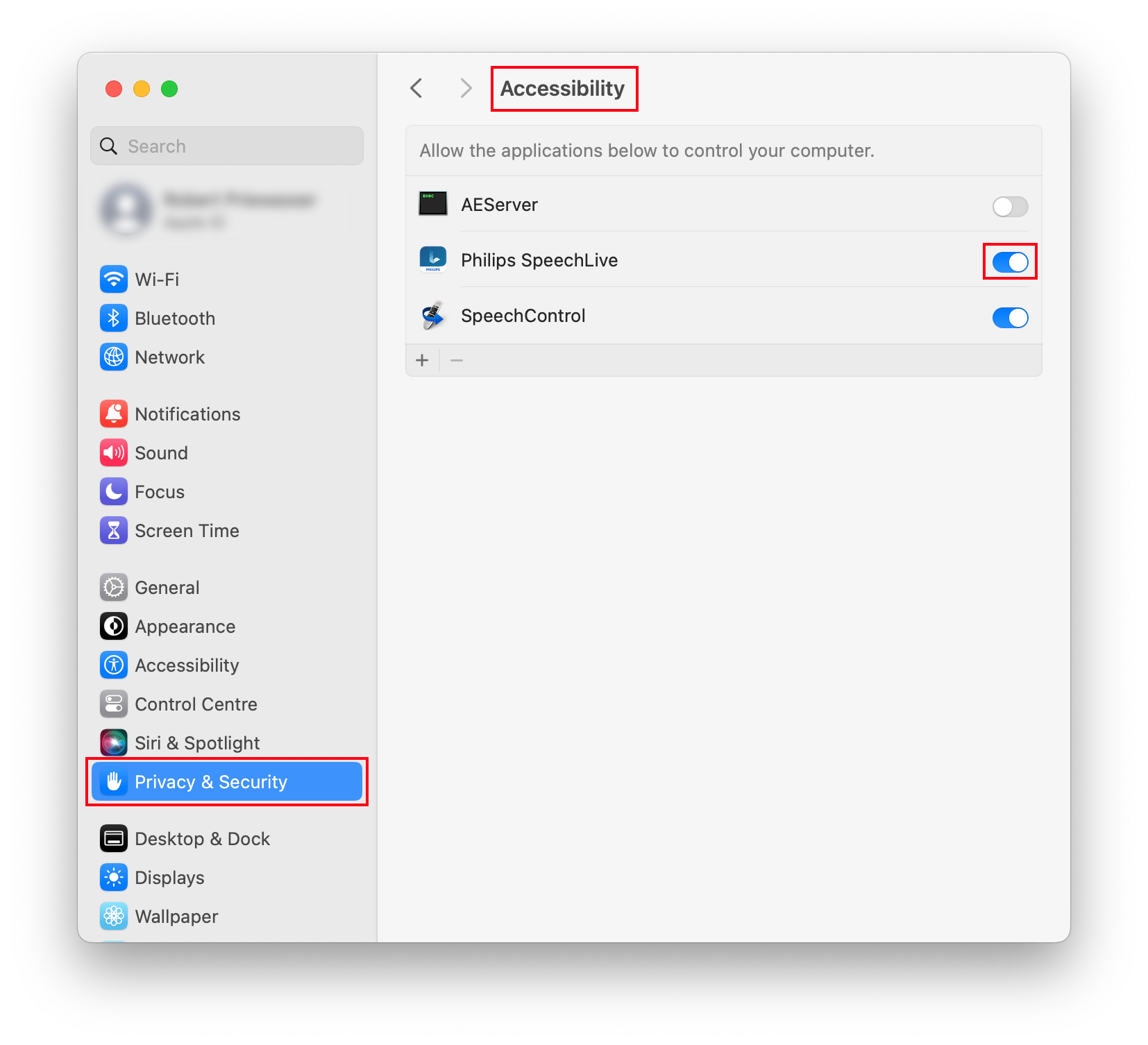
  6. The first time you want to use the speech recognition function (see Use the SpeechLive Desktop App), you will get an accessibility access question:

    desktop-app-mac-accessibility_access.png

    You must grant access for the app in the system settings (System Settings → Privacy & Security → Accessibility), otherwise you can’t use the speech recognition functions of the app.

    mac-system-settings_grant-accesability-access.png

Updating the SpeechLive Desktop App

We recommend using the latest version of the SpeechLive Desktop App to benefit from the latest features, improvements, and updates.The update procedure depends on the version currently installed.

Updating version 3.5.XX

Version 3.5.XX cannot be updated automatically to the latest version.

Download the latest SpeechLive Desktop App using the download link above, close the currently running app, and run the installer. After installation, start the SpeechLive Desktop App and sign in.

Check your application settings after the update.

Updating version 3.6 or later to version 4.0 or later

Version 4.0 introduces the new generation of the SpeechLive Desktop App.

  1. Download the latest SpeechLive Desktop App using the download link above.

  2. Start the installer.

  3. If prompted, close the currently running SpeechLive Desktop App.

  4. Follow the instructions on screen to complete the update.

  5. Start the new SpeechLive Desktop App and sign in with your SpeechLive account.

  6. Verify your application settings after the migration.

Compatible local application settings are migrated to the new version. The previous Desktop App installation is removed after a successful migration.

[Note]Note

If your organisation manages the SpeechLive Desktop App centrally, contact your IT administrator before performing the update.

Updating version 4.0 or later

Use the update functionality of the SpeechLive Desktop App to install subsequent updates.

Your application settings and data are retained when updating to a newer version.

Mac computers with Intel processors

SpeechLive Desktop App version 4.0 and later supports Mac computers with Apple silicon.Mac computers with Intel processors are not supported by version 4.0 and later.