Append, Insert, Overwrite
You can switch between different recording modes, depending on how you want to work on your dictation.
Tap on the second icon in the lower left corner of the app to switch betweenAppend  , Insert,
  , Overwrite
  and Overwrite (delete rest)
  .
.
Append
Using Append you continue recording at the end of your current dictation. This is also independent of the current position of the cursor  in the waveform.
Insert
Move the cursor
in the waveform to the position where you want to insert new information.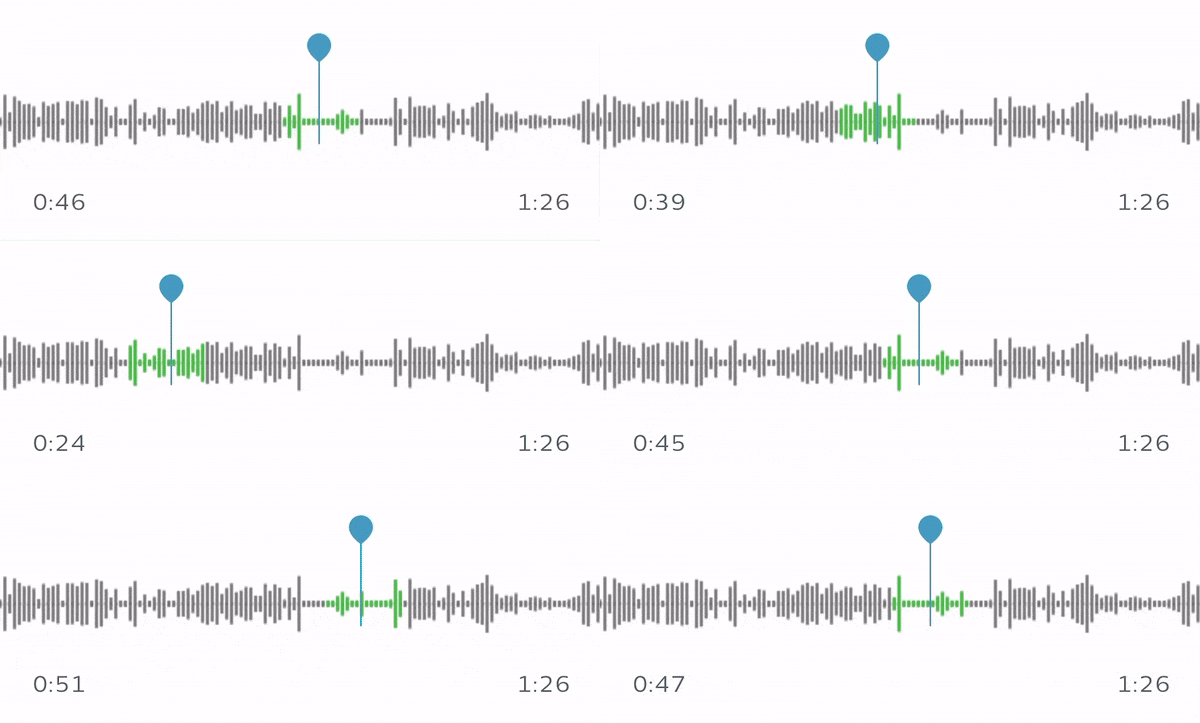
Tap on the Record
 button to continue recording at this position.
X Everything you record will be added after the selected position in the recording. This function is useful if you want to add additional information at a specific position in your recording.
Overwrite
Move the cursor
in the waveform to the position where you want to insert new information.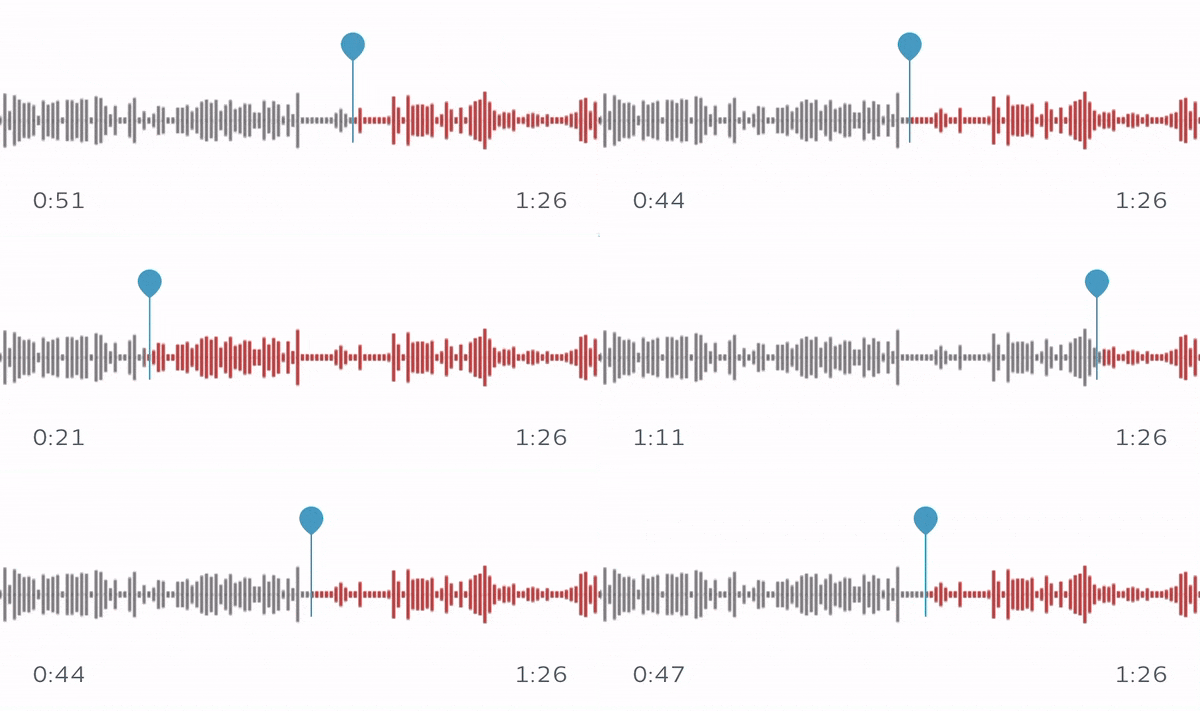
Tap on the Record
button to continue recording at this position.X Everything you record will overwrite what you previously recorded. This function is useful if you want to correct mistakes in your recordings.
Overwrite (delete rest)
Move the cursor
in the waveform and select the position from which everything following in the dictation should be deleted.Caution
Everything you recorded after the cursor position will be deleted!
Tap on the Record
button to continue recording at this position.X Everything you have recorded after the cursor position will be overwritten or deleted. This function is useful if you want to delete parts at the end of a dictation, especially in very long dictations.