Account
The displayed options in the Account tab are depending on the Type of purchase and on the account status.
In the account tab, administrators can access and edit some of the settings of their SpeechLive account. To edit the settings, click on Edit account  in the toolbar.

The header bar only appears if there are any problems with your account e.g.:
Your trial account has expired
The payment has failed
The account reactivation has failed
Auto-recharge for the transcription service did not work
The header bar also includes a short description for a potential solution of the problem.
In the product information section you can view the following entries:
Item | Description |
|---|---|
Product | Displays information about the purchased product |
User(s) paid | Displays information about the number of purchased users in your account |
User(s) activated | Displays information about the number of activated workflow users in your account vs. the number of available users. e.g.: 3/4 means:
|
Speech recognition packages | Displays how many speech recognition packages you have bought for this account. |
Speech recognition packages activated | Displays how many speech recognition packages are active for this account. |
Next payment | Displays the date when the next payment transaction occurs |
Valid until | Displays the end of term date of your current plan. If the account is not terminated before the term is over the account will be automatically renewed with the current term of your plan. E.g. 1-year plans will be automatically extended by another year. NoteThe account administrator will receive notification emails 1 month and 14 days upon renewal* |
Add/remove SpeechLive user license* | Click on this link to add and remove SpeechLive user licenses. You will be forwarded to the SpeechLive online shop. |
Terminate subscription* | Click on this link to terminate your subscription. SpeechLive will then guide you through the termination process. |
Reactivate account* | This link appears in case your account has been terminated or if a payment has failed. Click on this link if you would like to continue using your SpeechLive account.SpeechLive will then guide you through the necessary steps to reactivate your account. |
*... only available for self-service customers. See Type of purchase for more information.
Note
The visibility of some items is depending on the current account status.
The account information displays your SpeechLive Account ID and the current status of your subscription.
Item | Description |
|---|---|
Account ID | Displays information about the ID of your account. Please use this ID in case of any support calls |
Status | Displays information about the current status of your account. There are three possible status options:
|
By default the SpeechLive partner has been assigned to you during the registration process according to the closest proximity based on your address data.
The SpeechLive partner supports you during the setup and the utilization period and it is also the point of contact if you would like to enhance your workflow with Philips dictation devices and accessories.
Item | Description |
|---|---|
Company name | This is the company name of your assigned SpeechLive partner |
Address | This is the address of your assigned SpeechLive partner |
Phone | This is the phone number of your assigned SpeechLive partner |
Change dealer | Click on this link if you would like to select a different SpeechLive partner for service and support |
Send email | Click on this link if you would like to send an email to your selected SpeechLive partner |
Note
German transcription service end of life
You will no longer be able to purchase or automatically recharge German transcription service minutes. Our German transcription service provider will discontinue its service on 26 March 2026.
You can only select one specific transcription service language for your account
In this section you can crosscheck and edit diverse settings for the selected transcription service.
Transcription service settings
Item | Description |
|---|---|
Status | Displays whether the transcription service is currently 'enabled' or 'disabled'. If no transcription service has been selected so far the status is 'not activated' |
Credit balance | Displays the currently available transcription service credits of your account. For standard dictations (no priority, no multi-speaker) the number of credits translate into the number of available dictation minutes that can be sent to the transcription service. |
Language | This is the selected transcription service language. It is not possible to send recordings with a different language nor is it possible to send recordings with mixed languages to the transcription service. NoteFor best transcription results please speak in a clear and calm manner. Avoid to rush or mumble words and also try to not speak any dialect expressions since they might not be known by our transcriptionists. |
Recharge |
|
Notification |
|
Buy transcription minutes | Click on this link if you would like to use the SpeechLive transcription service and there are no transcription service credits on your account. The link will forward you to the SpeechLive Online shop. |
Enable transcription service | Click on this link if you would like to enable the SpeechLive transcription service. |
Disable transcription service | Click on this link if you would like to disable the SpeechLive transcription service. |
Transcription service history
In this section you can view all transcription service transactions of your account in the Transcription service history list. The list provides the option to apply a filter for a specific time period and it allows you to export the search results into a CSV file for further analysis.
In this section you can control the settings for speech recognition.
Item | Description |
|---|---|
Status | Displays whether speech recognition is currently 'enabled' or 'disabled'. |
Add/remove speech recognition packages | Click on this link if you would like to buy speech recognition packages. The link will forward you to the SpeechLive Online shop. |
Note
The speech recognition history as well as the option to activate/deactivate speech recognition for your account was moved to the administration section, see Speech recognition for more information.
The account address section is used to provide correct tax invoices to your company.
It includes the following items:
Item | Description |
|---|---|
First name | This is the first name of the account administrator or a responsible person in your company. |
Last name | This is the last name of the account administrator or a responsible person in your company. |
Company name | This is the name of your company. |
Profession | This is the industry your business operates in. |
VAT ID | This is the tax ID of your company which is used for providing correct tax invoices. For some products in some regions the tax is automatically deducted if a valid VAT is entered. NoteThe VAT ID might be called differently or it might not be relevant in your country. |
Address | This is your company's address. |
ZIP/City | These are zip code and city where your company resides. |
State | This is the state where your company resides (USA, Canada, and Australia only). |
Country | This the country where your company resides |
Phone | This is the phone number of the account administrator or a responsible person in your company. It is mainly used for support calls. |
Note
This section is only available for self-service customers. See Type of purchase for more information.
SpeechLive does not store any payment information in its system, but it displays some few information in the payment information section.
Item | Description |
|---|---|
Payment method | Displays the payment information. This can either be the credit card provider (AMEX, VISA, MASTER,..) or direct debit (Hobex) which is available in Austria, Germany and the Nederlands only. |
Currency | This is the currency in which your account will be charged. |
Change payment information | Click on this link to update your payment information in case your credit card expires, or if you want to change the credit card during a purchase period. More information about changing the payment information can be found in the Online shop section. |
Multi-factor authentication increases the security of your data / account. After activating this feature, users need to enter an additional verification code before they can log in to their SpeechLive account. The code is sent to the same email address the user is logging in with and is only valid for a limited time.
Administrator: Activate multi-factor authentication for the administrator of the SpeechLive account.
Workflow users: Activate multi-factor authentication for all workflow users (e.g. authors, transcriptionists) of the SpeechLive account.
Note
You can only activate/deactivate multi-factor authentication for all users, its not possible to set it only for specific users.
To activate/deactivate multi-factor authentication:
Choose Enabled (Email) or Disabled either for the Administrator or all Workflow users from the dropdown list.
Scroll down and click on Save to apply the new settings.
Note
After activating multi-factor authentication, it may take a few minutes for the setting to be applied to all users.
Multi-factor authentication is not available for SpeechExec.
Disable multi-factor authentication if you are using SpeechLive via SpeechExec.
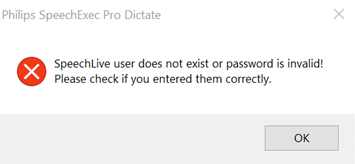
Users will not be able to sign in to a SpeechLive account via SpeechExec if multi-factor authentication is enabled. This error message is displayed if multi-factor authentication is enabled for the SpeechLive account if attempt to log in via SpeechExec:

This section shows you the email address of the Account administrator.
Item | Description |
|---|---|
E-mail address | This is the e-mail address of the Account administrator. |
Password | This is the password of the Account administrator. |
Note
If you use the same email address and password also for a workflow user you can also access your dictations via a single-sign-on.
This setting defines whether or not you would like to be informed about SpeechLive and Philips dictation solutions by Speech Processing Solution staff or by a sales partner. You can give or withdraw your consent later on at any time.