Notifications for new dictations
You can turn on notifications for new dictations in the personal settings.
Note
This setting is only available for typists.
Click on the bell icon
 in the upper right corner next to your username to open the notification center, here click on the settings icon
  .
.You can now set:
In-app notifications
Receive in-app notifications for dictations with a certain priority. You can also quickly open the dictations from within the notification center by clicking on them.
Sound
Play back sounds for dictations with a certain priority.
Email
Receive real-time emails for dictations with a certain priority.
Note
This setting is only available if it is activated for your user, see Turn on real-time emails for dictations.
You can additionally choose to only receive notifications if dictations have a specific priority.
Its also possible to turn off sound notifications during dictation playback to avoid any distractions during your work.
Turn on real-time emails for dictations
Account administrators and office managers can activate real-time email notifications for typists:
Open the Administration tab and click on a typist user in the list.
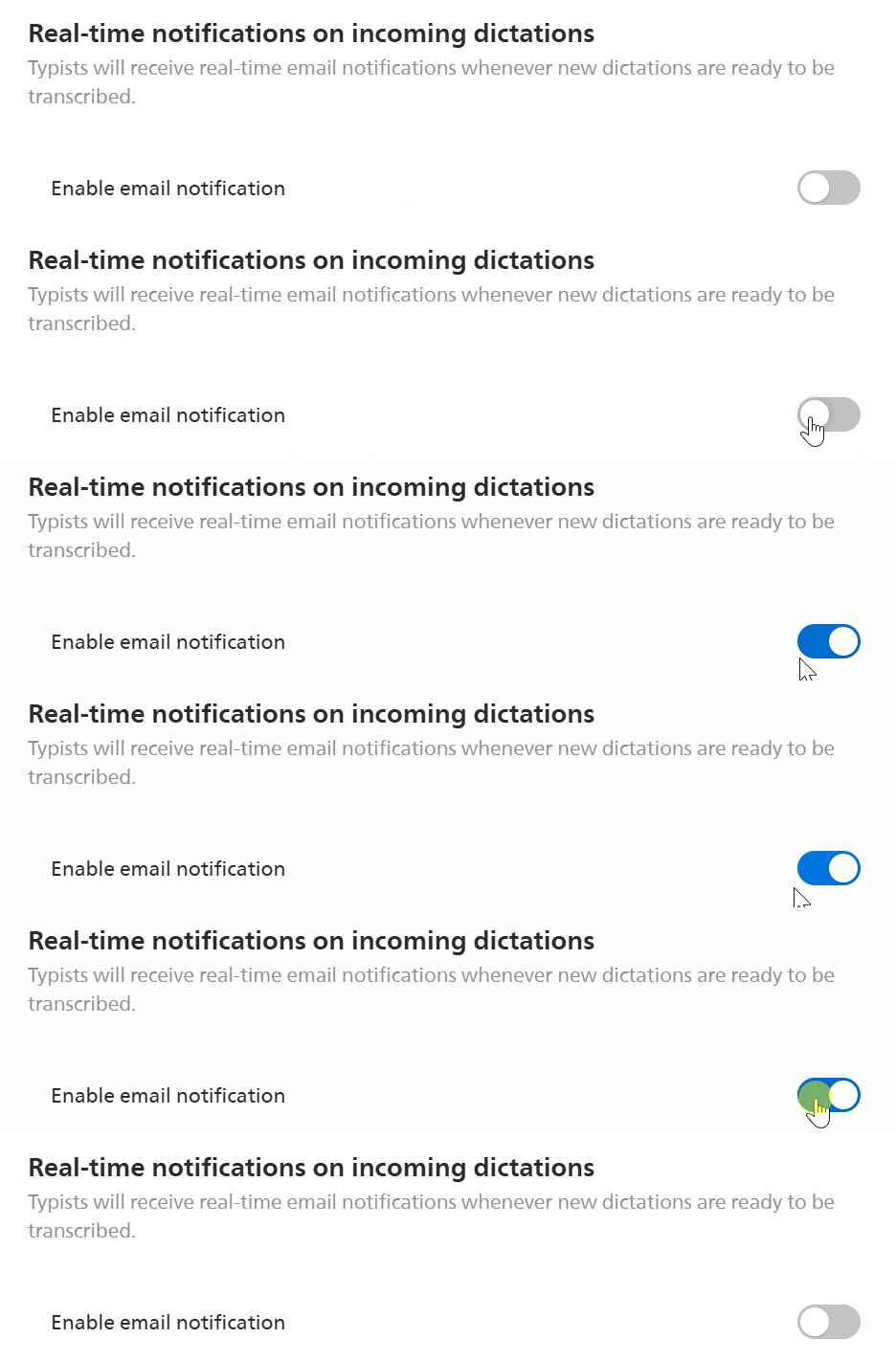
Scroll down and turn on the setting in the Real-time notifications on incoming dictations section.
Click on Save.