Add Replacements
You can add replacements when using SpeechLive's real-time speech recognition. A replacement links a spoken trigger phrase to a text that is inserted automatically. This allows you to quickly insert content you frequently reuse, for example, the address of your company, standardized letter headers, your signature, contact details, disclaimers or standard responses.
Note
Replacements are synchronized between the different applications, so you can also use them in the Mobile App or Desktop App.
Replacement text can contain up to 1,024 characters.
Replacements are only used for real-time speech recognition, not for offline/backend speech recognition (Send to speech recognition function).
New replacements apply only to the currently selected speech recognition language.
Add Replacements in the Web App
Navigate to the Dictations tab and click on the arrow in the corner of the
 New dictation button.
You can use the arrow in the corner of the button to switch between
New dictation,  Speech recognition or
 Upload.
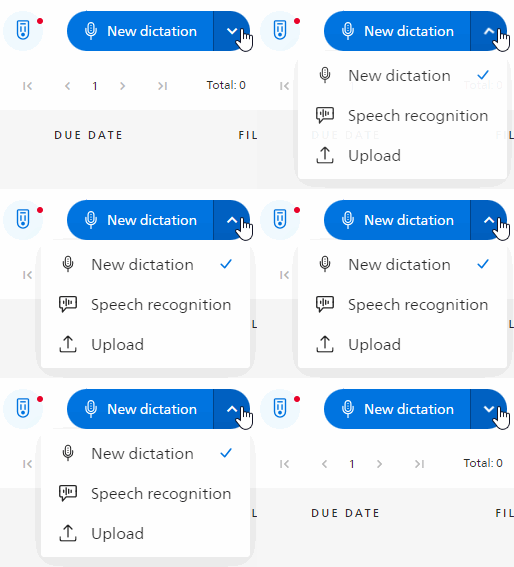
Choose
Speech recognition.Click on the Replacements
 button to open the list.
Click on Add replacement.
A new window opens. Enter the spoken trigger phrase in the left field and the text that should replace it in the right field. Click on Add to save the replacement.
X The newly added replacement is now active and ready for use.
Edit, deactivate or delete replacements
Open the replacements list and select the Custom section.
You can now do one of the following:
Edit: Click on the replacement and change it in the window.
Deactivate: Set the switch to inactive. The replacement is no longer used, but you can reactivate it at any time.
Delete: Click on the replacement and click on Delete at the bottom left to delete it permanently.
Add Replacements in the Mobile App
Start the SpeechLive Mobile App.
Tap on the speech recognition
 button in the lower right corner.
Tap on
 to open the replacements.
Tap on
 in the lower right corner.
A new window opens. Enter the spoken trigger phrase in the upper field and the text that should replace it in the lower field. Tap on
 to save the replacement.
X The newly added replacement is now active and ready for use.
Edit, deactivate or delete replacements
Open the replacements list and select the Custom section.
You can now do one of the following:
Edit: Tap on the replacement and change it on the next screen.
Deactivate: Set the switch to inactive. The replacement is no longer used, but you can reactivate it at any time.
Delete: Swipe left on the replacement and tap on the trash icon.
Add Replacements in the Desktop App
Start the SpeechLive Desktop App.
Click on the settings button
 and choose Replacements.
In the Replacements window, select the Custom tab. Enter the spoken trigger phrase in the When I say field on the left and the text that should replace it in the Replce with field on the right. Click the blue checkmark icon (✓) to save the replacement.
X The newly added replacement is now active and ready for use.
Edit, deactivate or delete replacements
In the Replacements window, select the Custom tab.
Locate the replacement in the list and select an action:
Edit: Change the text in the When I say or Replace with field. Click on the blue checkmark icon (✓) to confirm or on the cancel icon (✕) to discard your changes.
Deactivate: Set the switch to inactive. The replacement is no longer used, but you can reactivate it at any time.
Delete: Click on the trash icon on the right side of the entry to delete the replacement permanently.