Add words to the vocabulary
You can add your own words to the vocabulary, creating your own personal vocabulary when using SpeechLive's real-time speech recognition. This allows you to add specific words, expressions and names you regularly use and ensure that they are correctly interpreted when you use speech recognition.
Note
The vocabulary is synchronized between the different applications, so you can also use them in the Mobile App or Desktop App. Any words you add or delete in the Mobile App, Desktop App, or Web App will automatically sync across all platforms.
Words added to the vocabulary are only added for the current speech recognition language.
Its recommended to only add 50 words at a time to the vocabulary and don't use more than a total of 1000 words.
Add words to the vocabulary in the Web App
Navigate to the Dictations tab and click on the arrow in the corner of the
 New dictation button.
You can use the arrow in the corner of the button to switch between
New dictation,  Speech recognition or
  Upload.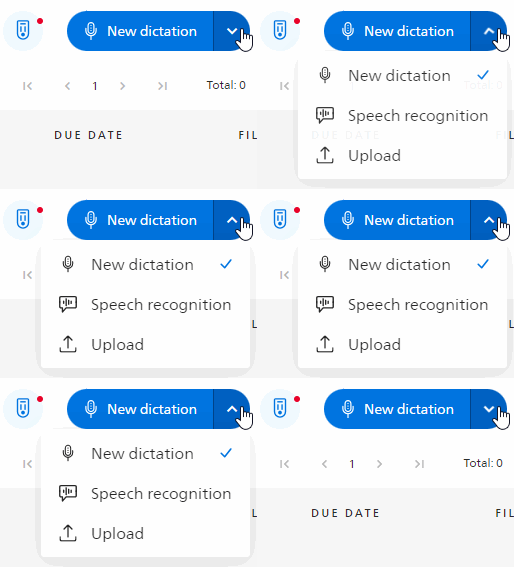
Choose
Speech recognition.Click on
 to open the vocabulary.
Enter the words you want to add in the Add word field. You can also add multiple words separated by commas. Press Enter or click the Add button to add the words you entered.
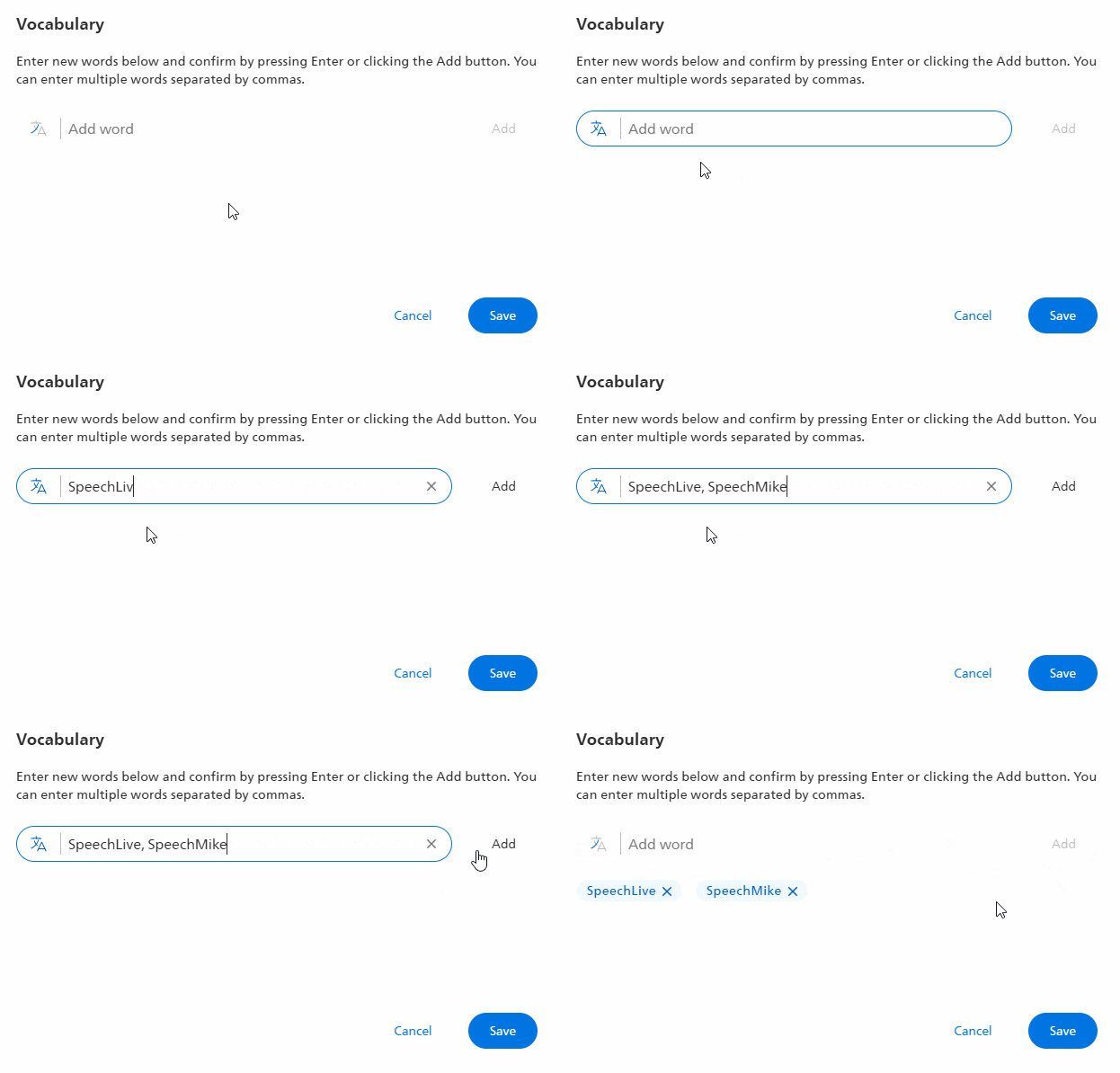
Click on Save to save your changes and close this window.
X The newly added words are now ready for use.
Delete words in the vocabulary
Open the vocabulary
.Click on the
 icon next to a word to delete it.
Note
It is not possible to edit words that have already been added. You must delete them and enter the new version manually.
Click on Save to save your changes and close this window.
Add words to the vocabulary in the Mobile App
Start the SpeechLive Mobile App.
Tap on the speech recognition
 button in the lower right corner.
Tap on
 to open the voice commands.
Tap on
to open the vocabulary.A new window opens, here you can enter the words you want to add in the Add word field. You can also enter multiple words separated by commas.
Tap on Add to add the words you entered.
X The newly added words are now ready for use.
Delete words in the vocabulary
Open the vocabulary
.Click on the
icon next to a word to delete it.Note
It is not possible to edit words that have already been added. You must delete them and enter the new version manually.
Add words to the vocabulary in the Desktop App
Start the SpeechLive Desktop App.
Click on the settings button
 and open the Vocabulary section.
Enter the words you want to add in the Add word field. You can also add multiple words separated by commas. Press Enter to add the words you entered.
X The newly added words are now ready for use.
Delete words in the vocabulary
Click on the settings button
and open the Vocabulary section.Click on the
icon next to a word to delete it.Note
It is not possible to edit words that have already been added. You must delete them and enter the new version manually.