No sound is played back
If you don’t hear any sound when you play back a dictation in SpeechLive you can check several settings:
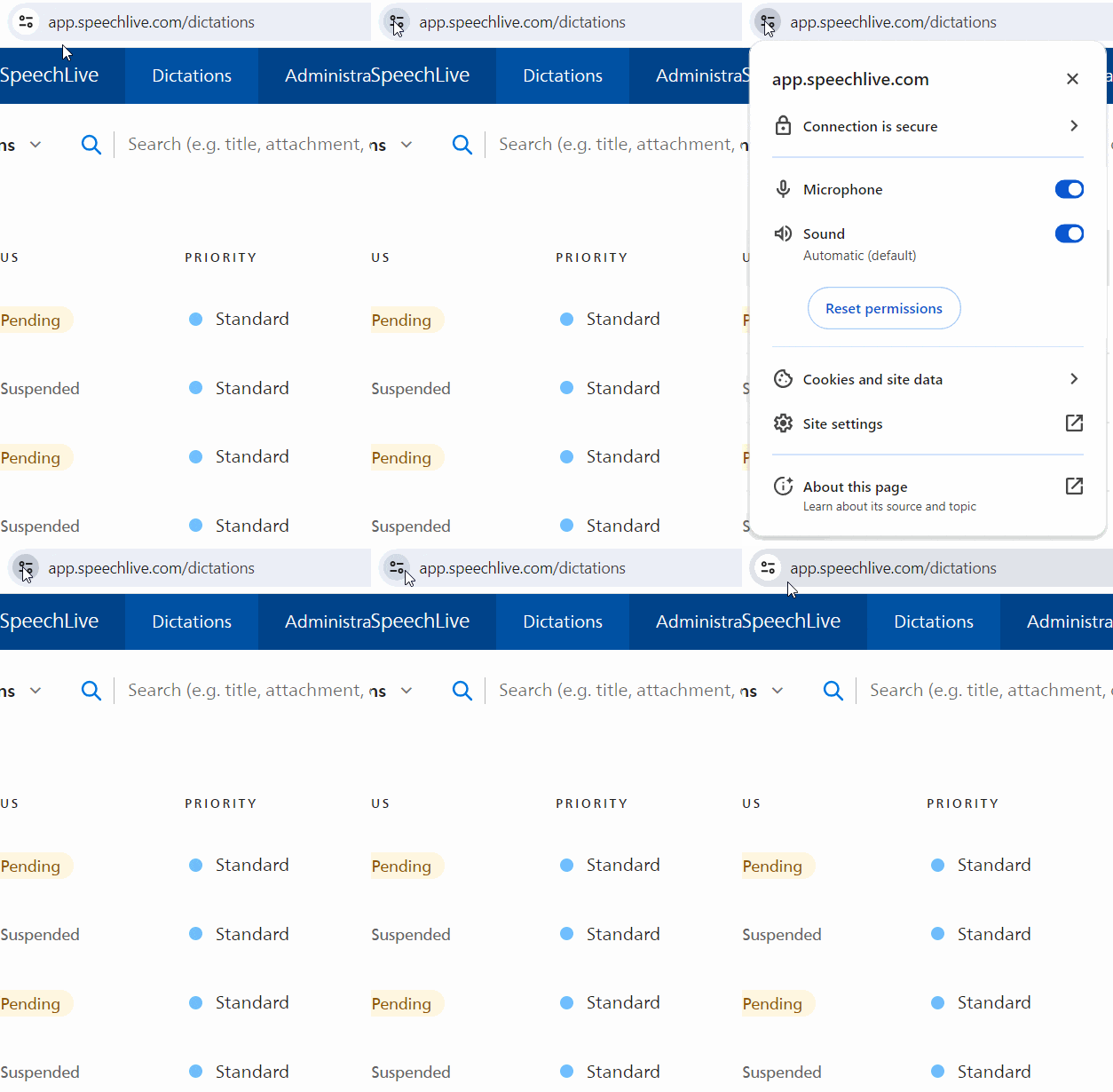
Navigate to the address bar of your browser and click on View site information
 .
.Make sure that the Sound permission is activated.
Open a dictation from the list and start playback. The waveform will indicate that something was recorded:
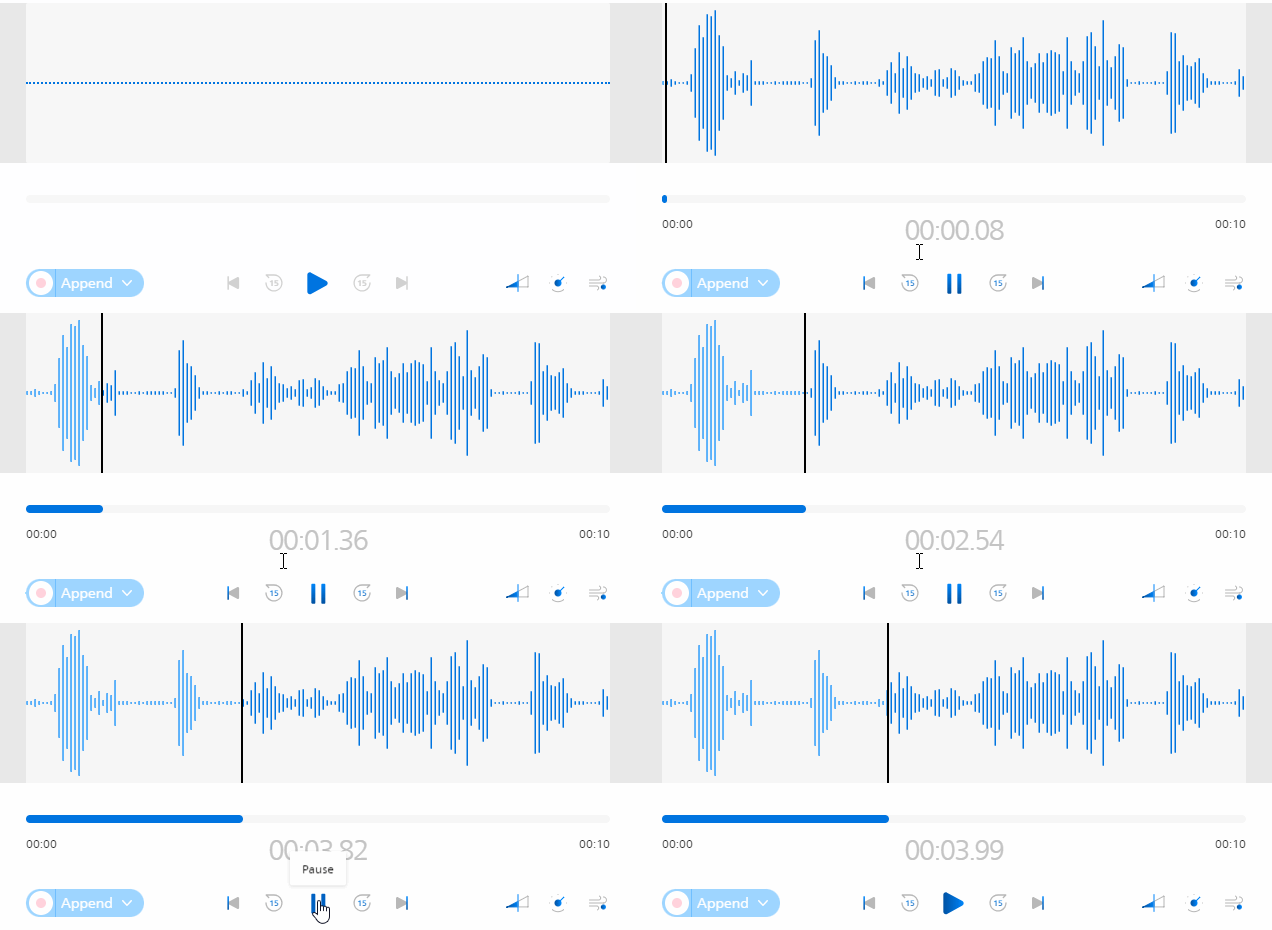 |
If the waveform is empty, the dictation has no recorded sound. Check There is no sound recorded for more information.
Make sure that the speakers of your computer are not set to mute:

Depending on your computer setup, we also recommend that you check that you have selected the correct speakers for audio playback.
If you still can't hear or record sound, we recommend to reset the permission in the browser and allow access again:
Navigate to the address bar of your browser and click on View site information
.Click on Reset permission in the menu, next you need to reload the page.
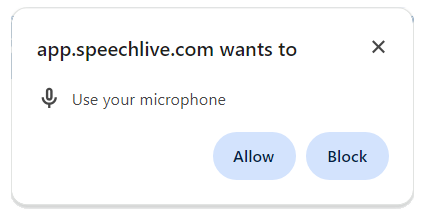
Create a new dictation and start recording, the browser will ask you for permission:
Click on Allow to continue.
X Now recording as well as sound playback should work again.