Mobile App design refresh comparison
With the September 25th release, we updated the design of the SpeechLive Mobile App. This includes updates to many of the screens, and the following comparison shows you all the changes to the app:
Log in screen
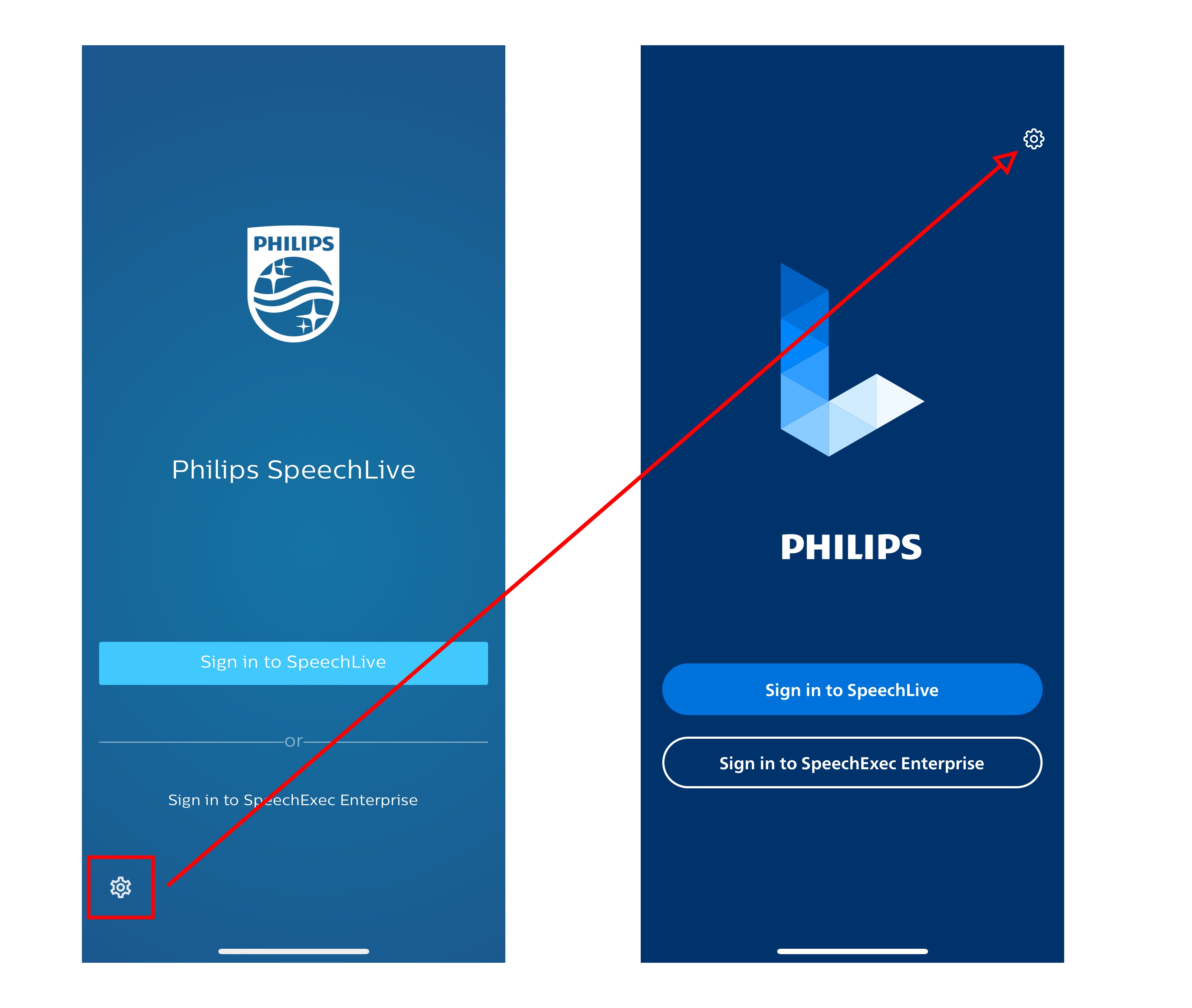 |
Overall design changes (colors, logos, button design)
The settings icon is now in the upper right corner
Dictation list (Draft) screen
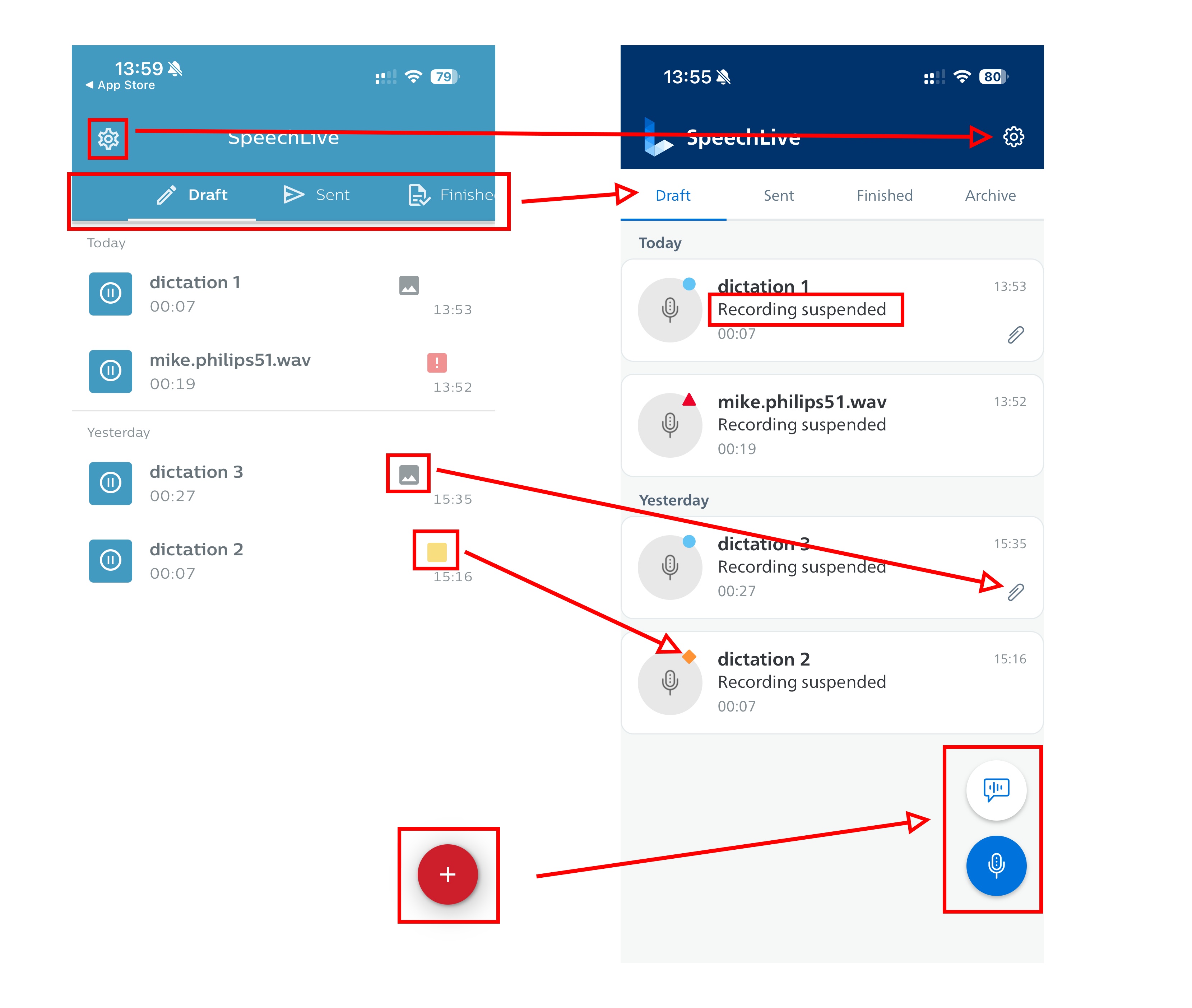 |
Overall design changes (colors, logos, button design)
Settings icon is now on the right side of the screen
Draft, Sent, Finished, Archive - is now visible without scrolling
New feature: The dictation state (e.g. Recording suspended) is now displayed under each dictation
Updated icons for attachments
Updated icons for dictation priority (in line with the icons used in the Web App)
New feature: New dictation button is split up into two floating buttons always visible (one for new dictation, one for new speech recognition).
Dictation list (Sent) screen
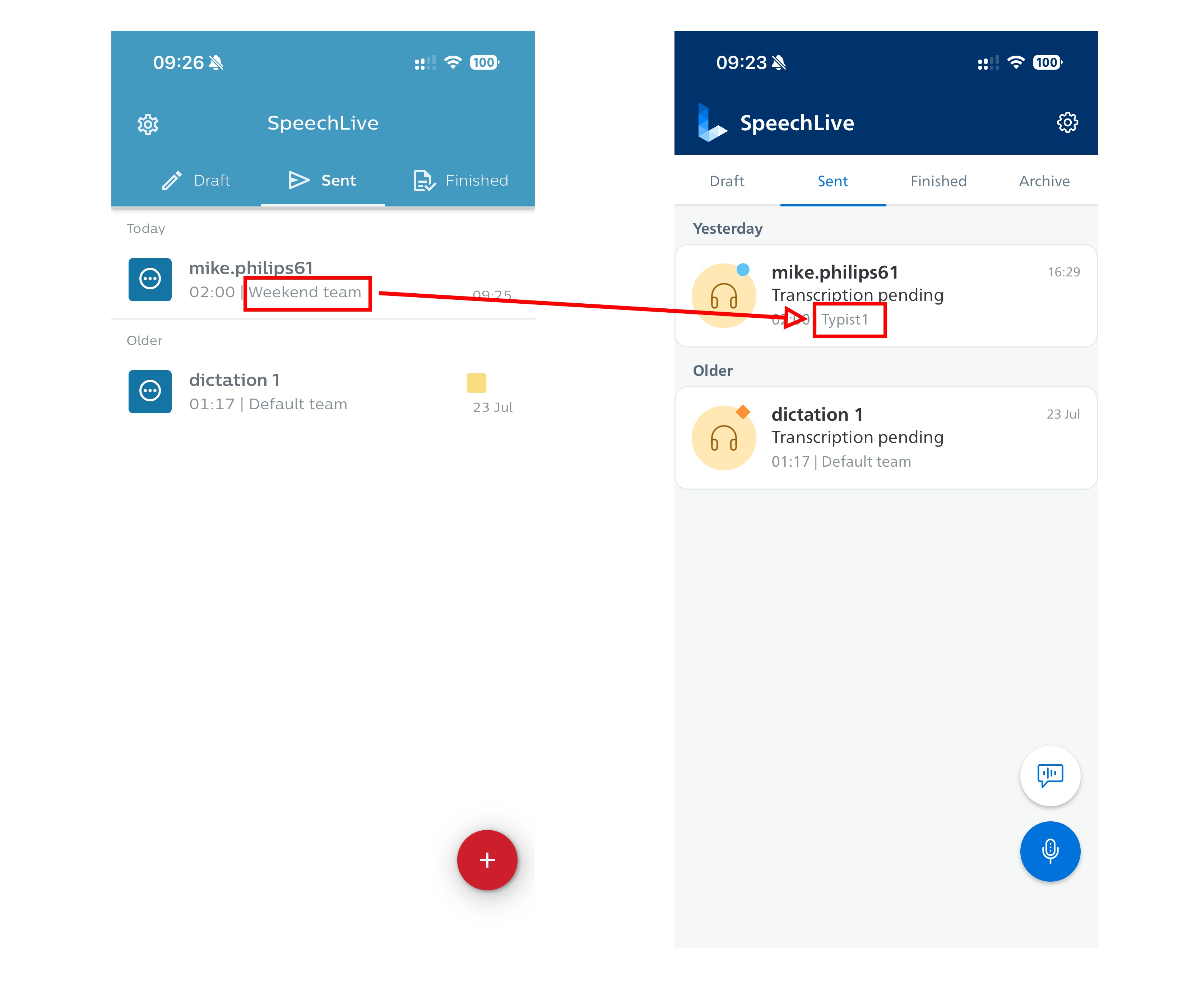 |
New feature: If a dictation is assigned to a team, but eventually picked up by a typist, then the app shows the typist that picked up the dictation (uses the last modified by value).
Dictation list (Finished) screen
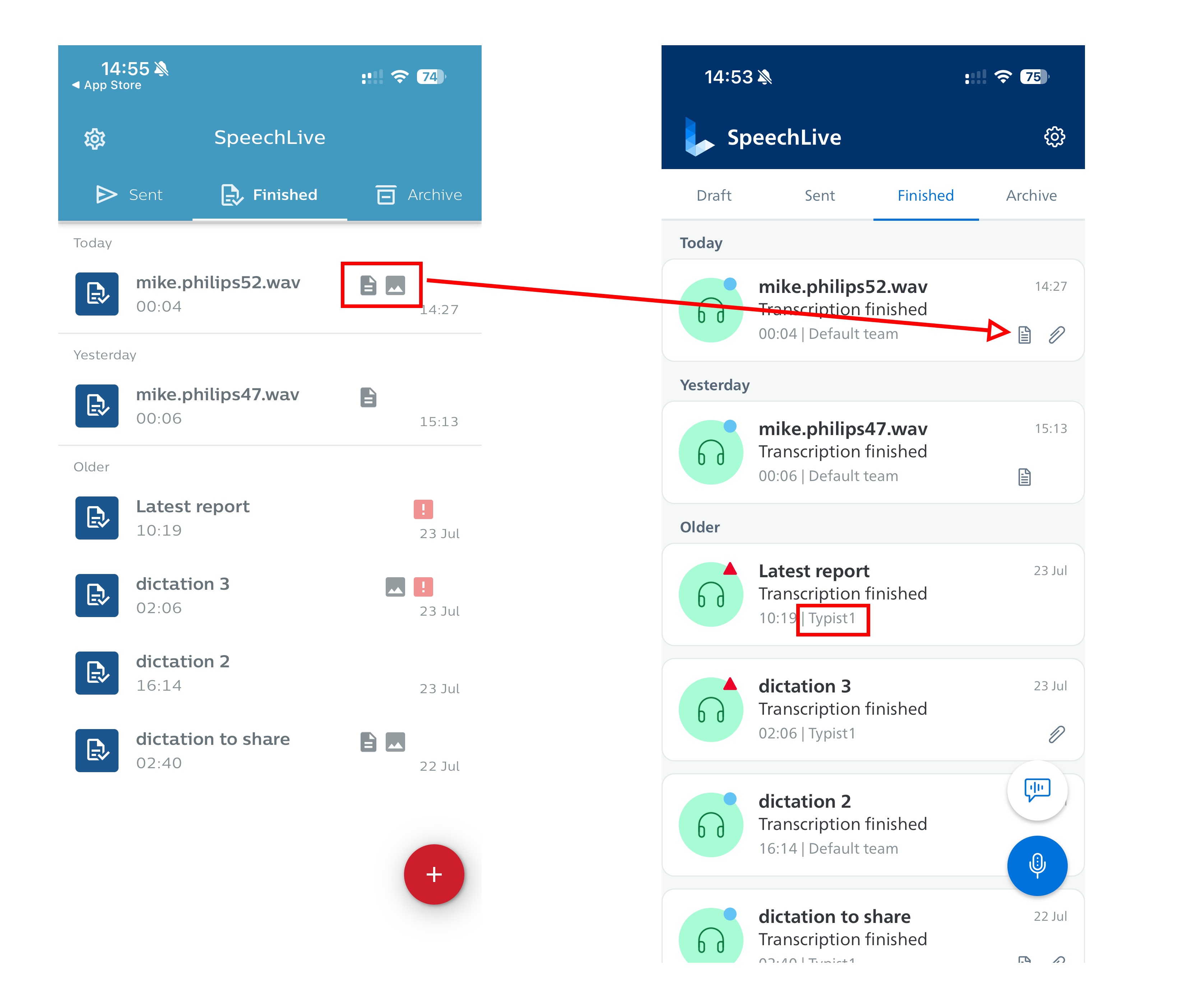 |
Overall design changes (colors, logos, button design)
New icons for attachments and transcript
New feature: If a dictation was assigned to a team, but eventually got picked up by a typist, then the app shows the typist that picked up / worked last on the dictation (uses the last modified by value).
Dictation list mini player screen
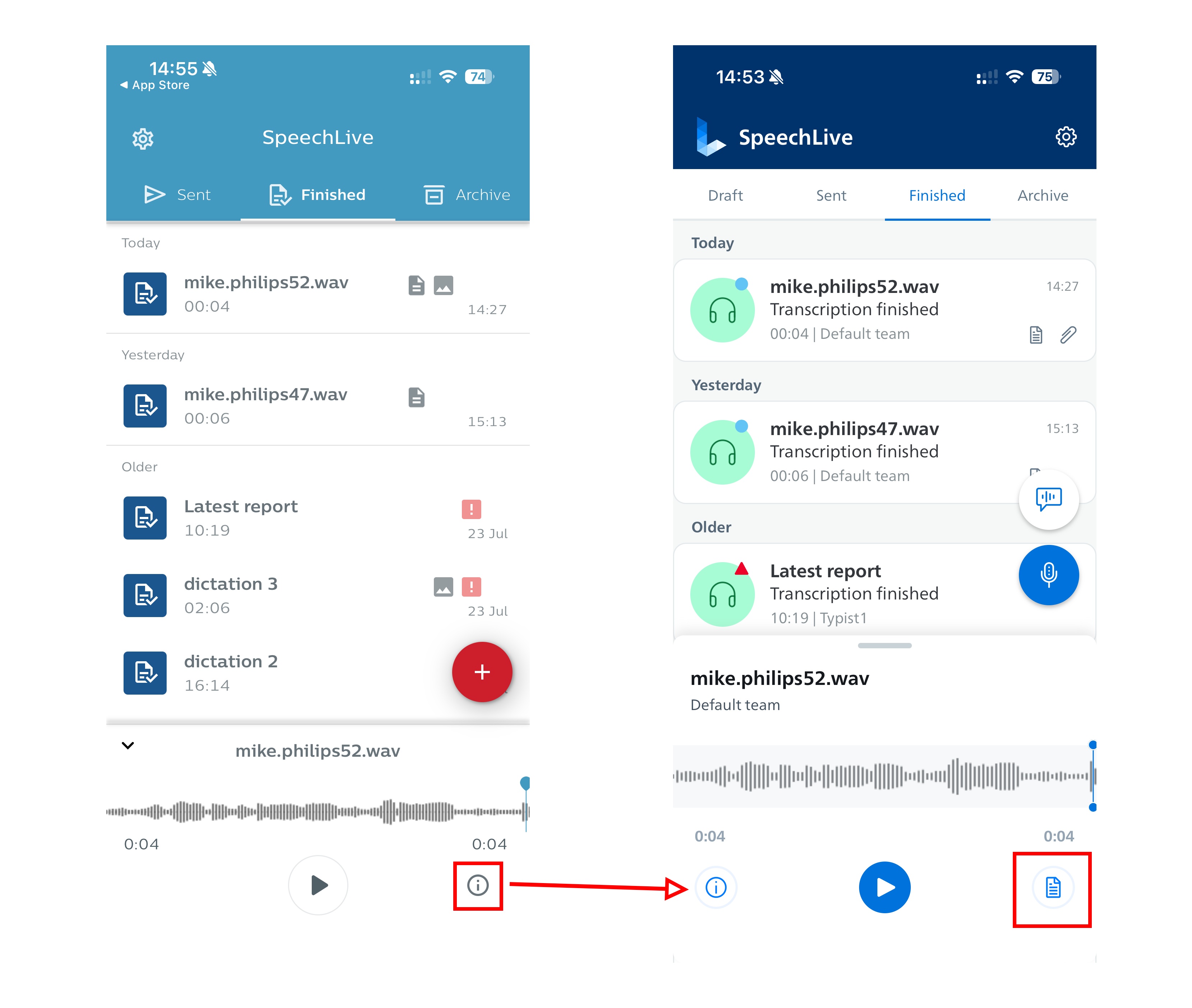 |
Dictation properties icon is now on the left
New feature: Users can open transcript with just one click from the mini player
Recorder screen
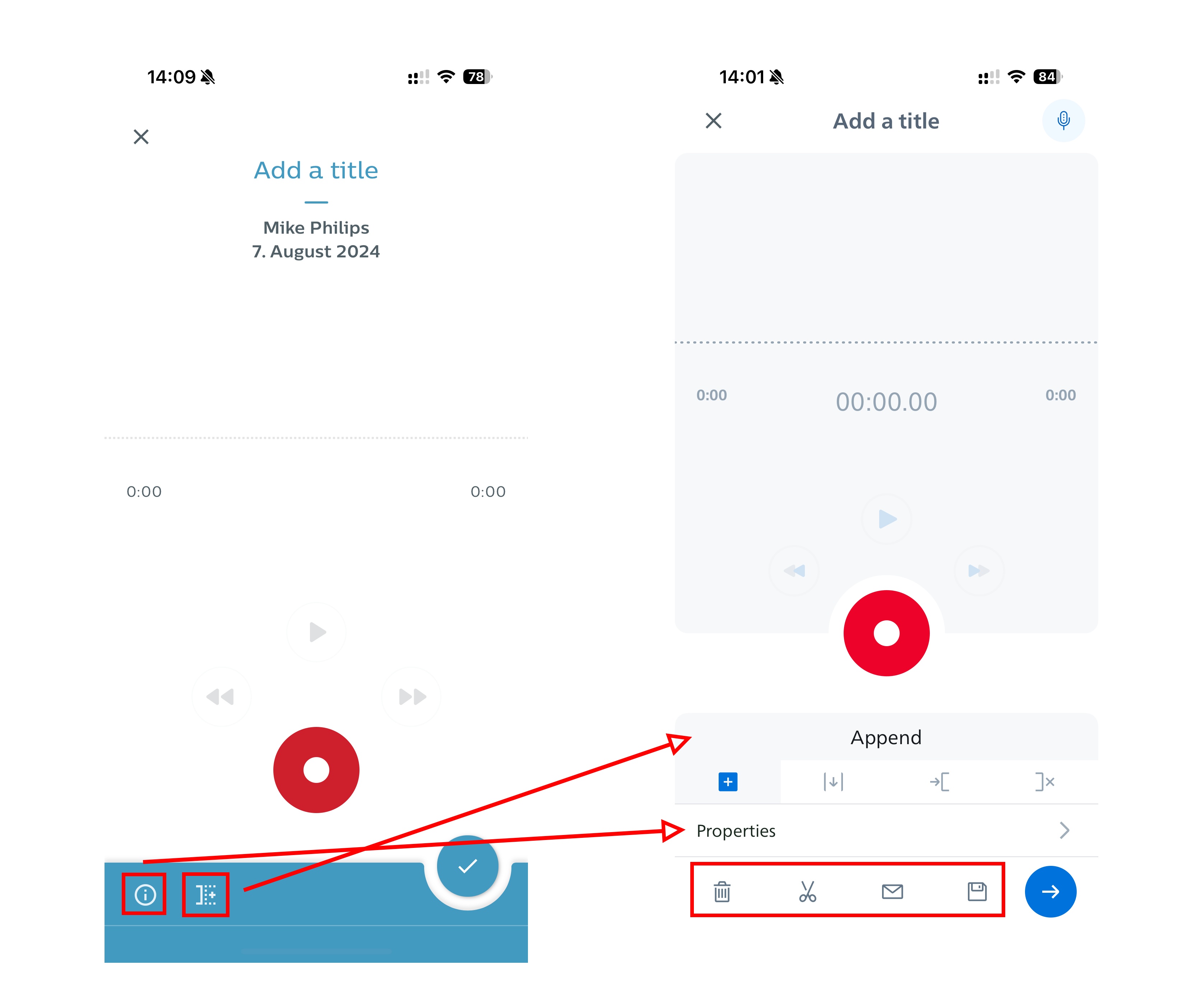 |
Overall design changes
Dictation properties are now accessed differently
Recording modes are accessed differently and quicker + its always visible via text which recording mode is active
New feature: Added new “Trim” mode
Less clicks: Delete, Share + Save as draft - function is now quickly available via icon (in the old Mobile App it was necessary to click on the floating button first to access those functions).
Trim mode screen
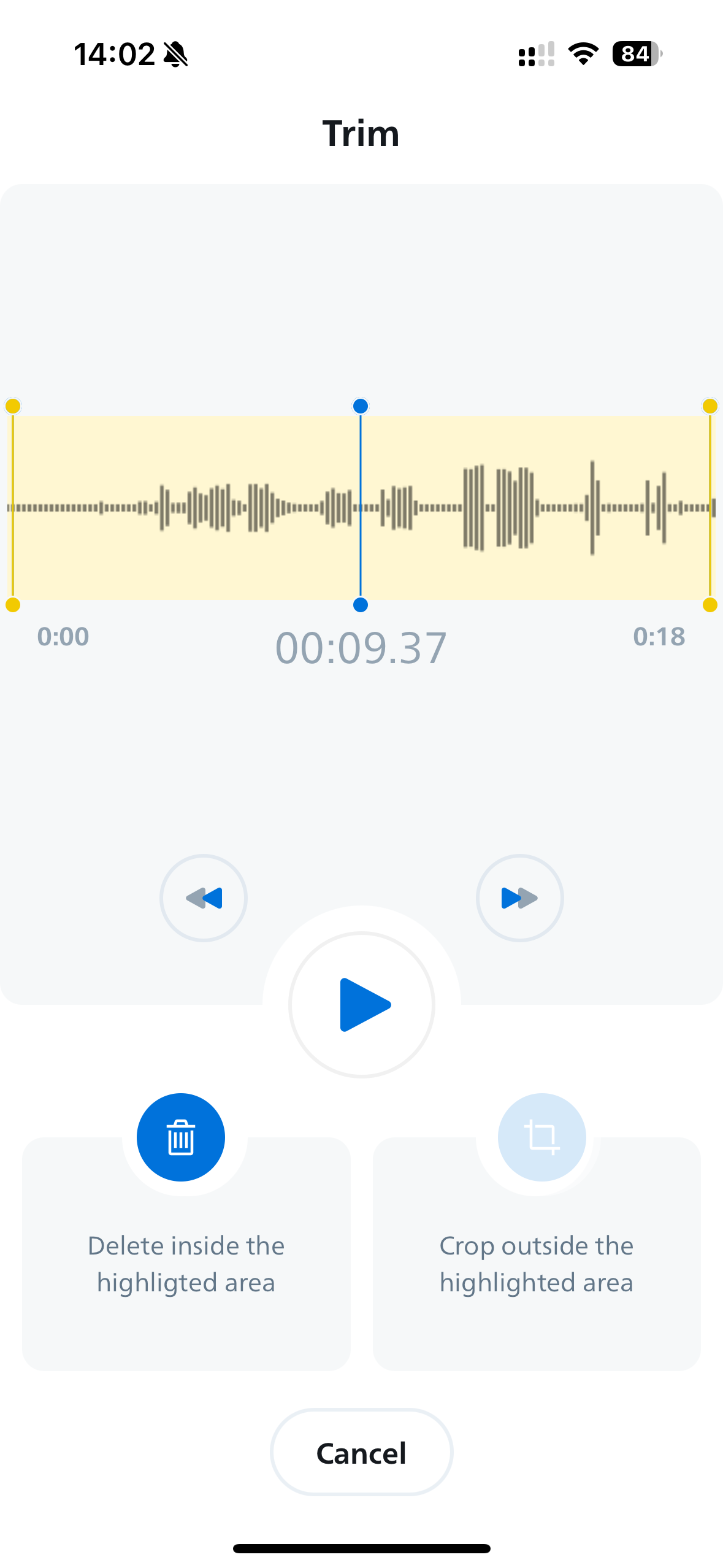 |
New feature: Trim mode with its own screen
Speech recognition screen
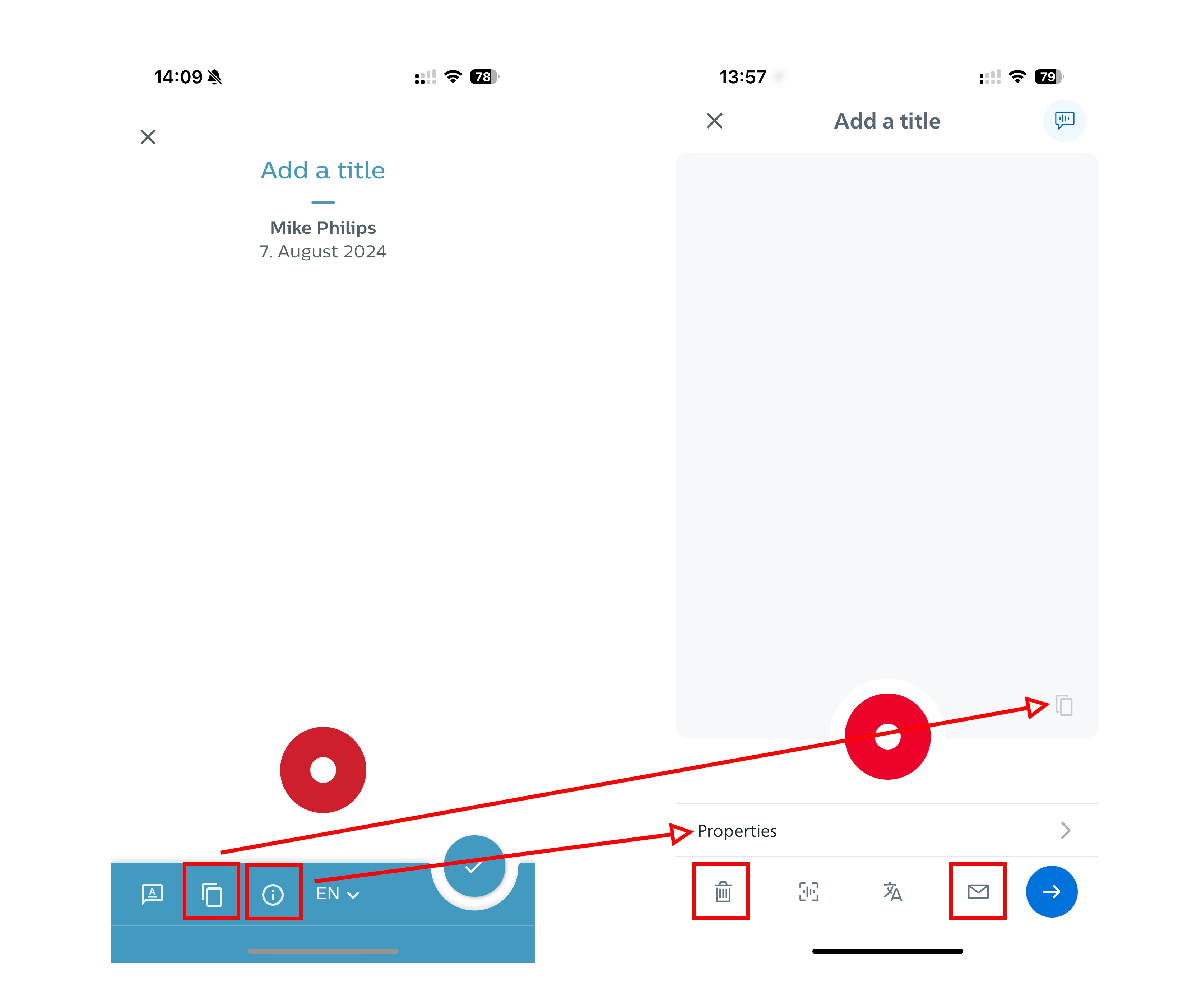 |
Copy icon is now on the right
Dictation properties are now accessed differently
Less clicks: Delete, Share - function is now quickly available via icon (in the old Mobile App it was necessary to click on the floating button first to access those functions).
Icons have been harmonized with the icons used in the new Web App
Dictation properties screen
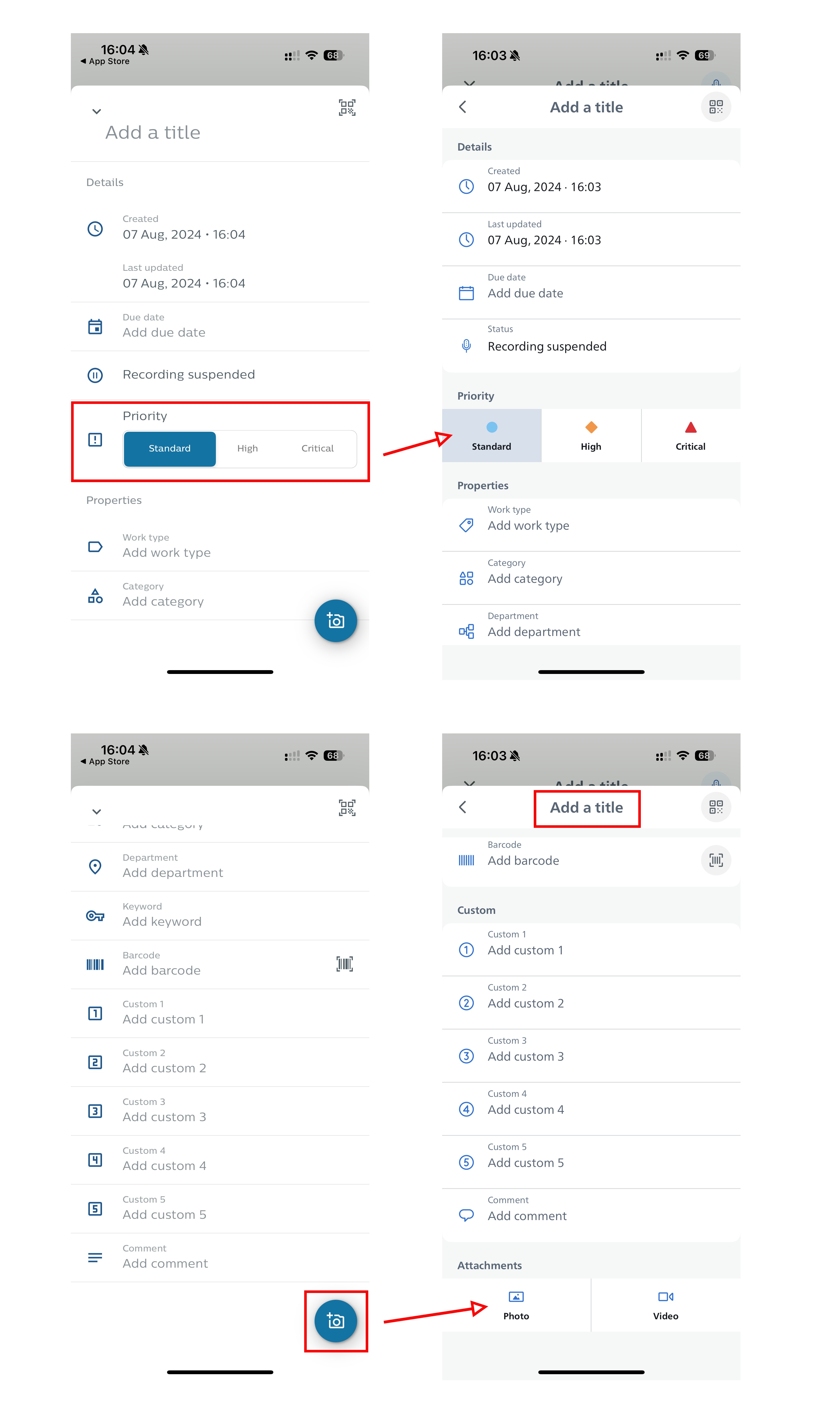 |
Dictation priority uses updated design in line with the Web App
New function: Its possible to add a title anytime, also when scrolling down
Adding Photos or Videos is now at the bottom of the properties and split into two separate buttons
Settings screen
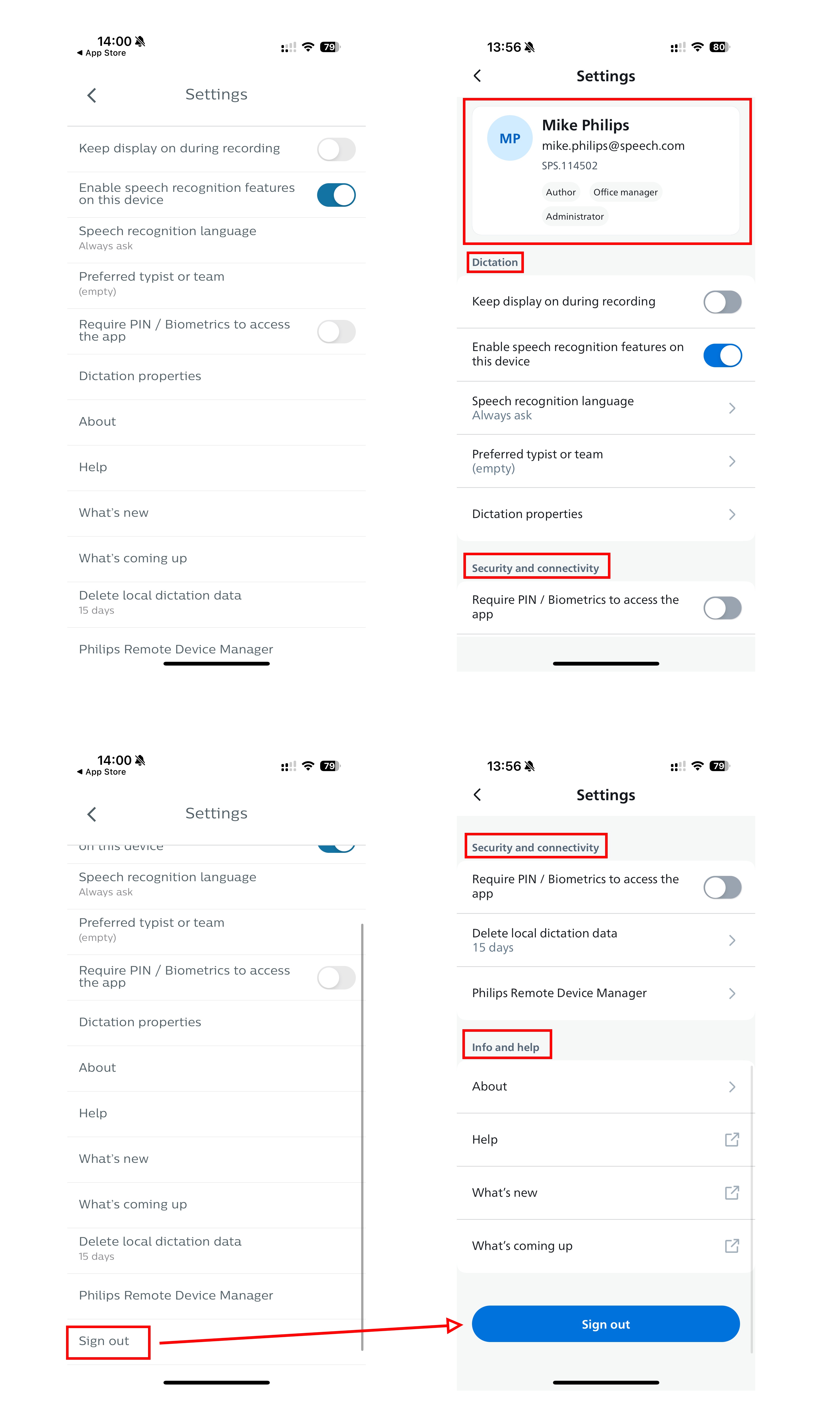 |
New function: The currently signed in user incl. all his user roles are now displayed at the top of the settings
New function: The settings screen is separated into different categories
The Log out button is now designed and placed more prominent