Office manager view
In SpeechLive, authors create dictations and assign them to typists or teams. The author who created a dictation is always able to re-assign it. To enable an even more flexible dictation administration, any user that has the office manager role is also able to re-assign dictations.
How to set the office manager role
SpeechLive administrators can add the office manager role to any user:
Navigate to the Workflow tab.
Choose the desired workflow user in the list and click on Edit user
 in the toolbar.
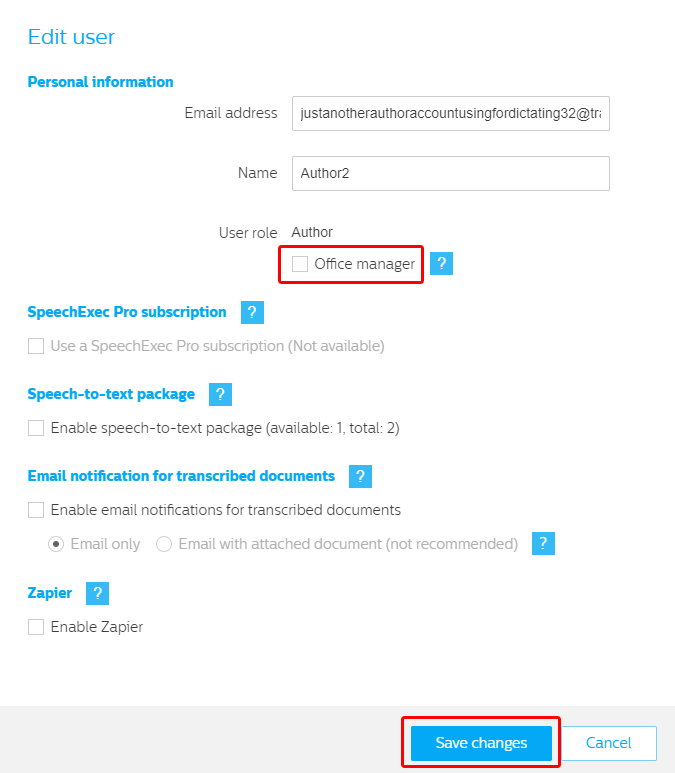
In the Edit user screen, activate the checkbox next to the Office manager option and click on Save changes.
How to reassign dictations as office manager
Navigate to the Dictations tab of SpeechLive.
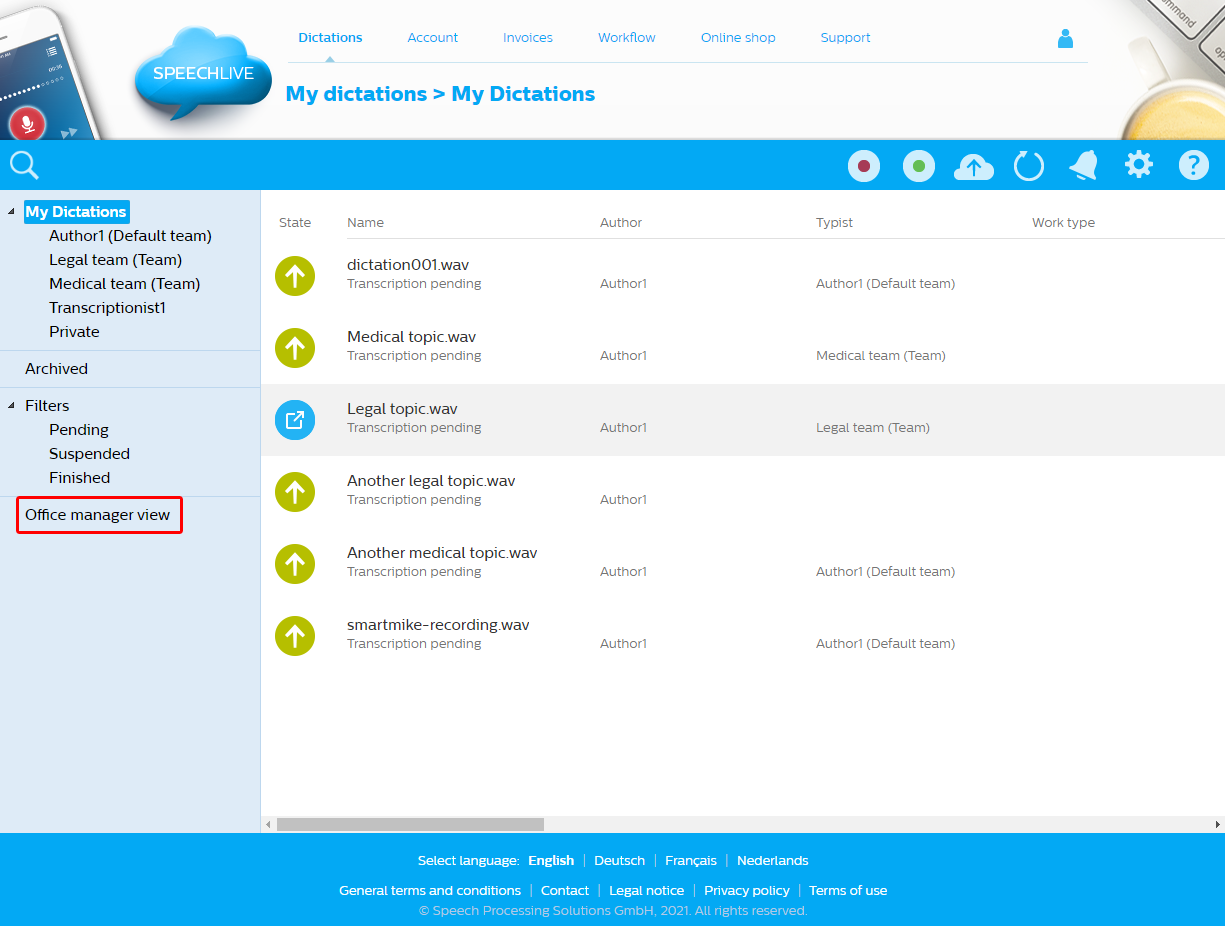
Click on Office manager view on the left side of the screen.
Select a dictation in the dictation list.
Choose Reassign
 in the toolbar.
X Select the team or typist you want the dictation assigned to.
Note
Dictations reassigned to teams not connected to an author are not visible for that author in SpeechExec.