Speech recognition
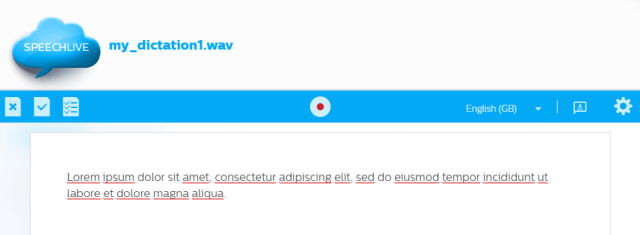
Speech recognition recognizes your voice instantly and automatically converts it to text. Click the Record Button to start a new speech recognition session.
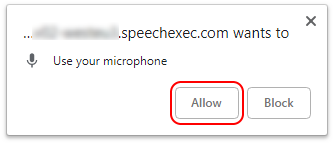
When you start speech recognition for the first time, you will be asked by your browser to allow access to your microphone:
Click on Allow to continue.
Note
Microphone access is required to use speech recognition.
After you pause speech recognition you can make manual changes to the text, however this is not possible during an ongoing session.
Speech recognition functions
Icon | Description |
|---|---|
 | Record/Pause: Start and pause speech recognition with this button. During an active speech recognition session, the Record button displays a Pause icon |

Workflow options
Icon | Description |
|---|---|
 | Close: Closes speech recognition. CautionYour speech recognition session will be lost! Use this option only when you want to discard this session. |
 | Finish: Saves the speech recognition session and its properties in the corresponding folder of the author. |
 | Dictation properties: Opens the Dictation properties. |
Settings
Icon | Description |
|---|---|
 | Language: Change the language used for speech recognition. |
 | Available commands: Show/hide a list of all available voice commands. |
 | Settings: Opens the speech recognition settings, here you can define your own vocabulary. Preferred typist or team: Here you can change the preferred assignment of your dictations, see Preferred typist or team for more information. |