Create a new dictation
Start the SpeechLive Mobile App.
Tap on the
 button in the lower right corner.
Tap on the Record
 button to start a new dictation.
Note
We recommend that you only record dictations up to one hour in length. For longer recordings, consider creating separate dictation files.
Please allow the app access to the microphone of your device to continue.
Note
Microphone access is necessary so the SpeechLive Mobile App can record your voice.
If you declined the access, you can change this setting manually:
Go to the settings of your device:
iOS: Choose SpeechLive in the list.
Android: Select the Apps section of the settings and choose SpeechLive in the list.
Allow the app the necessary permissions:
iOS: Choose Microphone and activate the switch
 to allow the SpeechLive Mobile App access to your microphone.
Android: Select Permissions, choose Microphone and activate the switch
to allow the SpeechLive Mobile App access to your microphone.
During the recording, you can pause by taping the Pause
 button.
After you're finished:
Tap
 to save and close your dictation.
X Your dictation is saved and automatically synchronized with SpeechLive.
Note
If you're signed in via SpeechExec Enterprise, drafts are only saved locally in the app and are not synchronized to the server.
Tap
 and choose Typist to send the dictation directly to a typist. The Send dictations to a typist section covers this in more details.
Note
Some Samsung devices record / play back distorted audio. In this case we advise to turn off Bluetooth until a bugfix has been released by Samsung.
Rewind and Fast forward
Hold  to rewind or hold
 to fast forward in the recording.
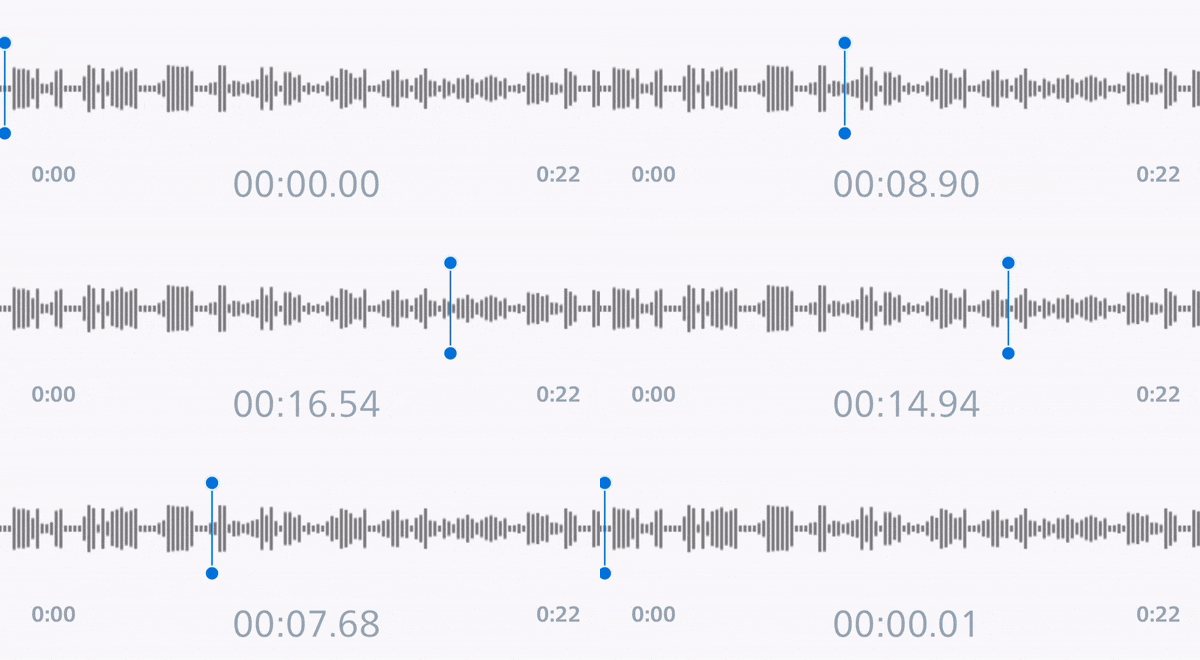 |
You can also move the cursor  in the waveform to jump to the desired position.
Tap once to jump to the beginning of the recording.
Tap once to jump to the end of the recording.