Migration to new SpeechLive Web App
Important - The legacy version of SpeechLive will be retired soon!
The old version of SpeechLive will be permanently shut down at the end of March 2025. You can already move to the new SpeechLive today!
Simply go to www.speechlive.com/app to use the new Web App
You can log in with your current username and password.
All your dictations are available in the new Web App.
From March 3rd 2025, you will be automatically taken to the new Web App each time you log in to SpeechLive, but you will still be able to manually switch back to legacy SpeechLive.
From March 31 2025, you will no longer be able to switch back to legacy SpeechLive, you will only be able to use the new Web App.
More questions?
Frequently asked questions
We changed the way you can use hardware with SpeechLive with the new Web App. If you used Philips Device Connector (PDC) before, then nothing changed for you. Just plug in your foot control and you can use the pedals to control the web player.
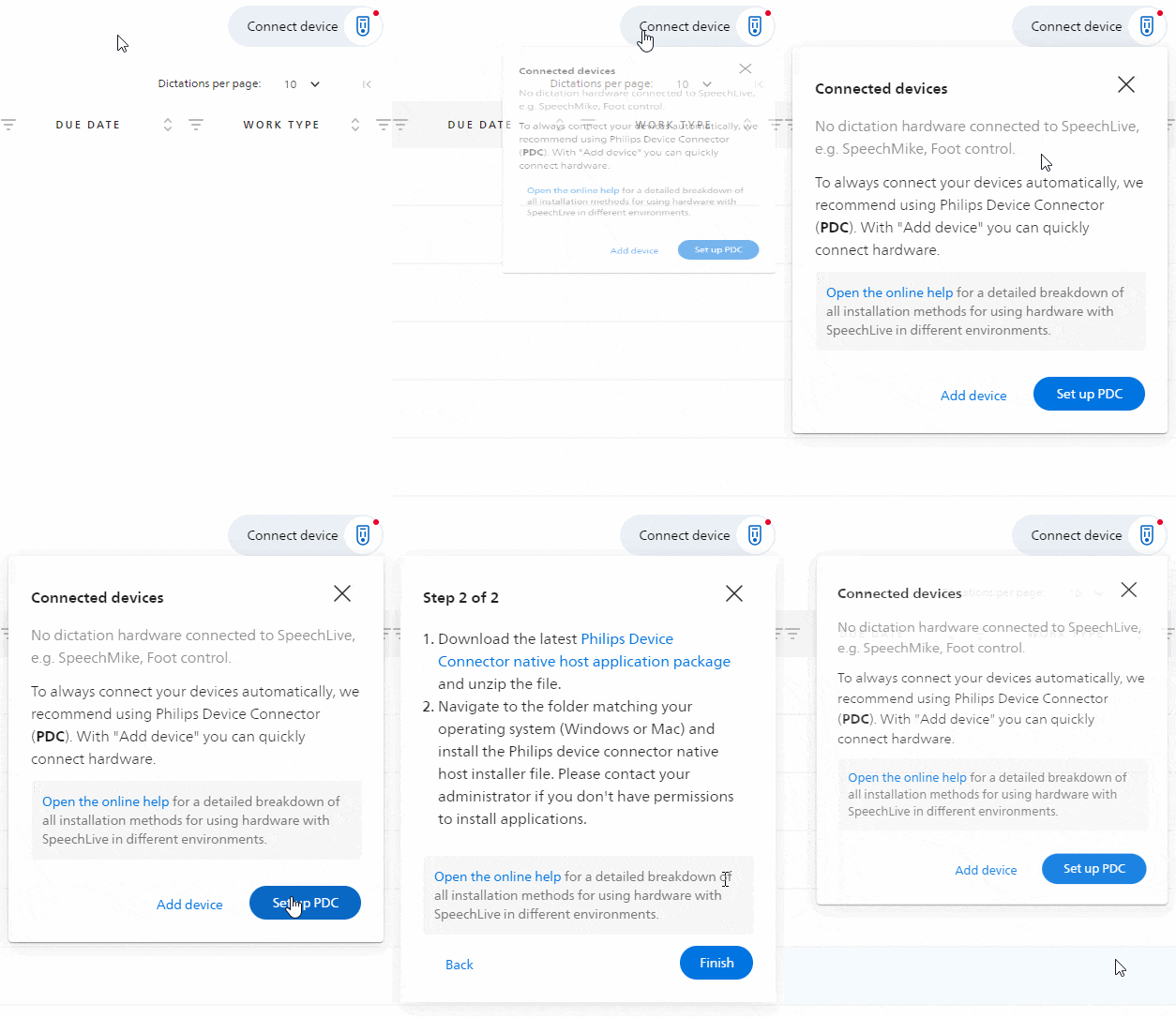
The process to install Philips Device Connector is covered within the new Web App and guides you through all the necessary steps:
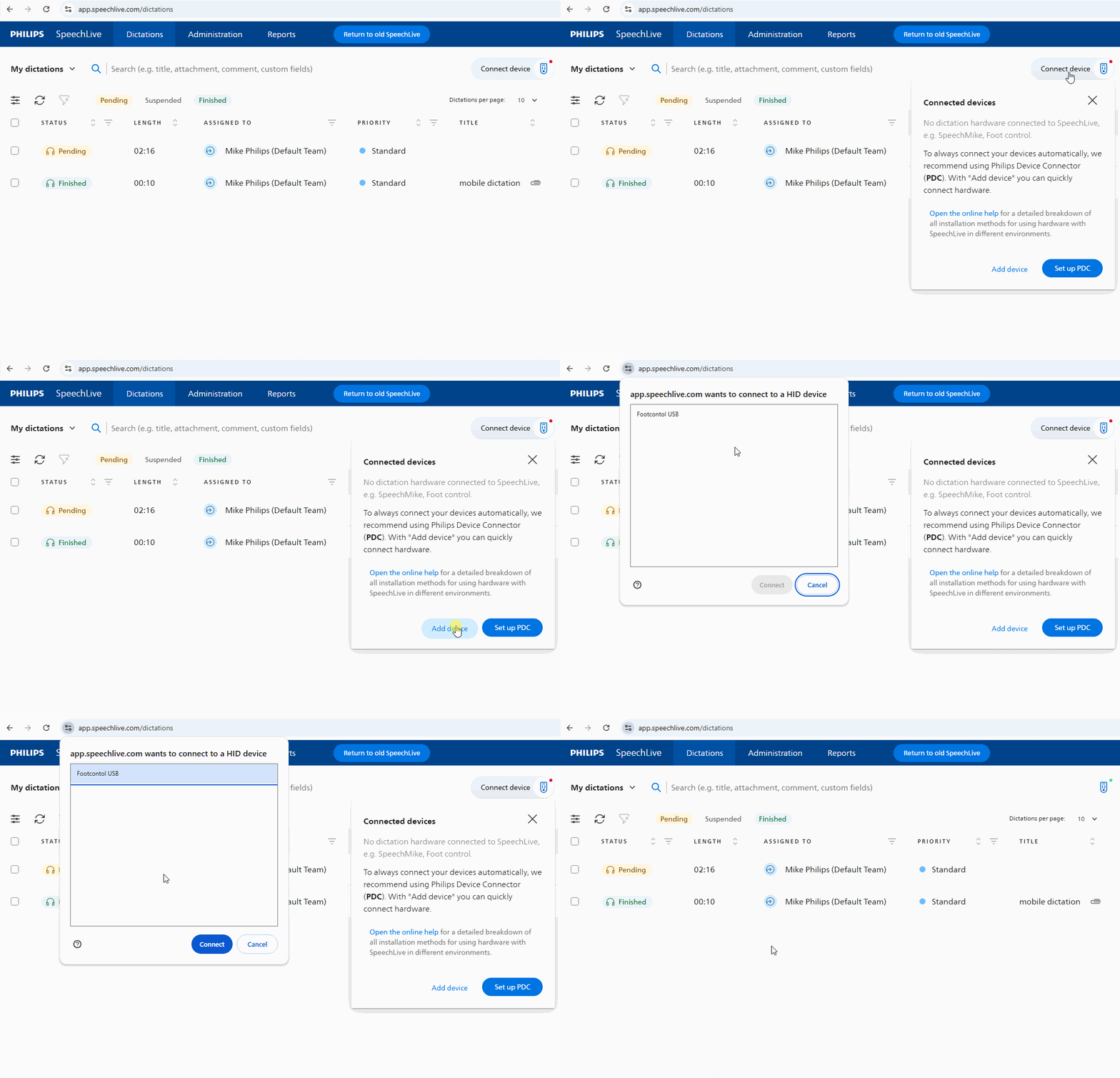
If you can’t install Philips Device Connector, than you can also perform a few manual clicks to add your foot control:
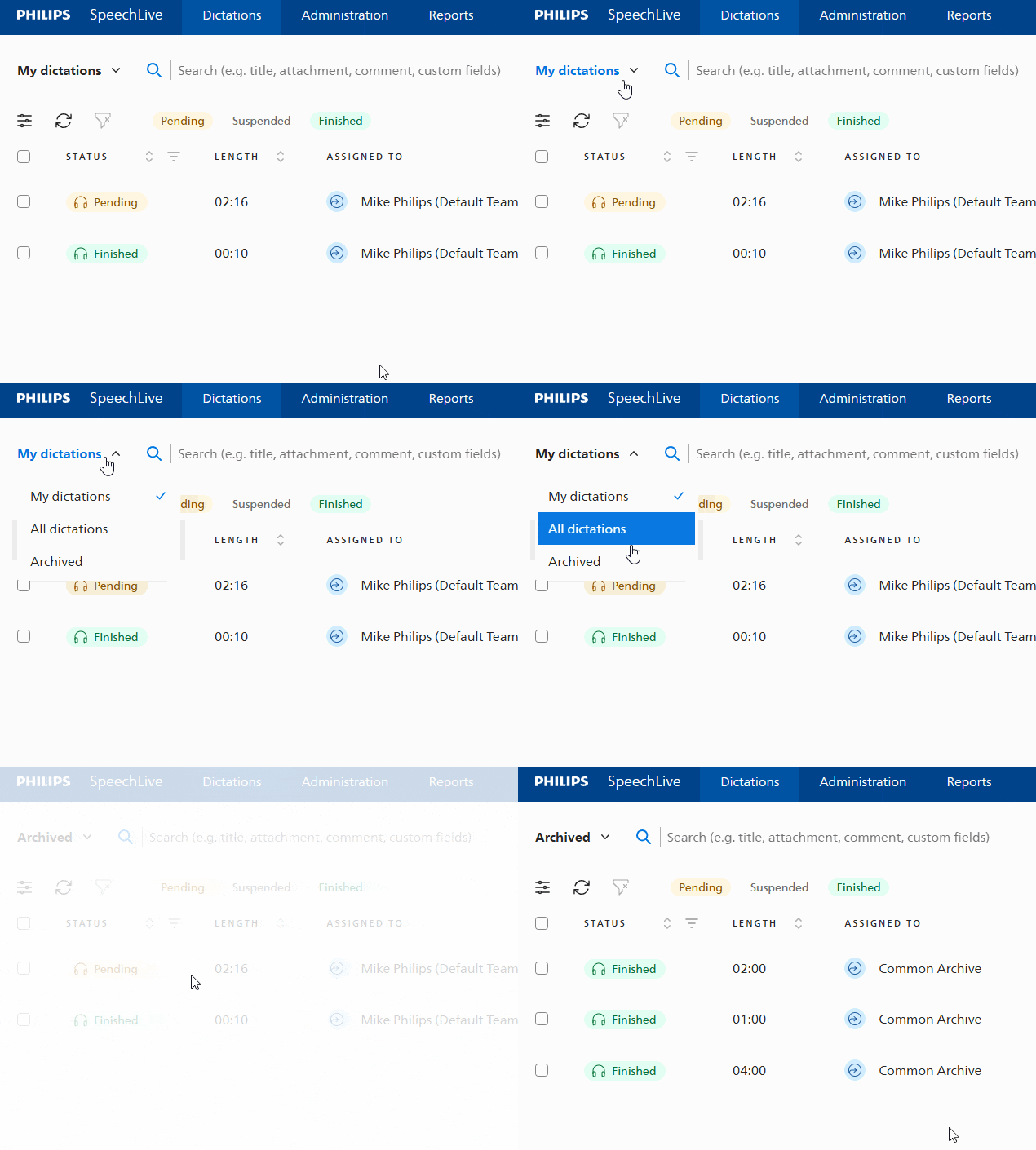
All dictations in legacy SpeechLive, no matter if they are archived or in the private folder, are of course also available for you in the new Web App.
You can customize the order as well as the displayed columns in the dictation list:
On the dictation list screen, click on the
 Settings icon in the upper left corner.
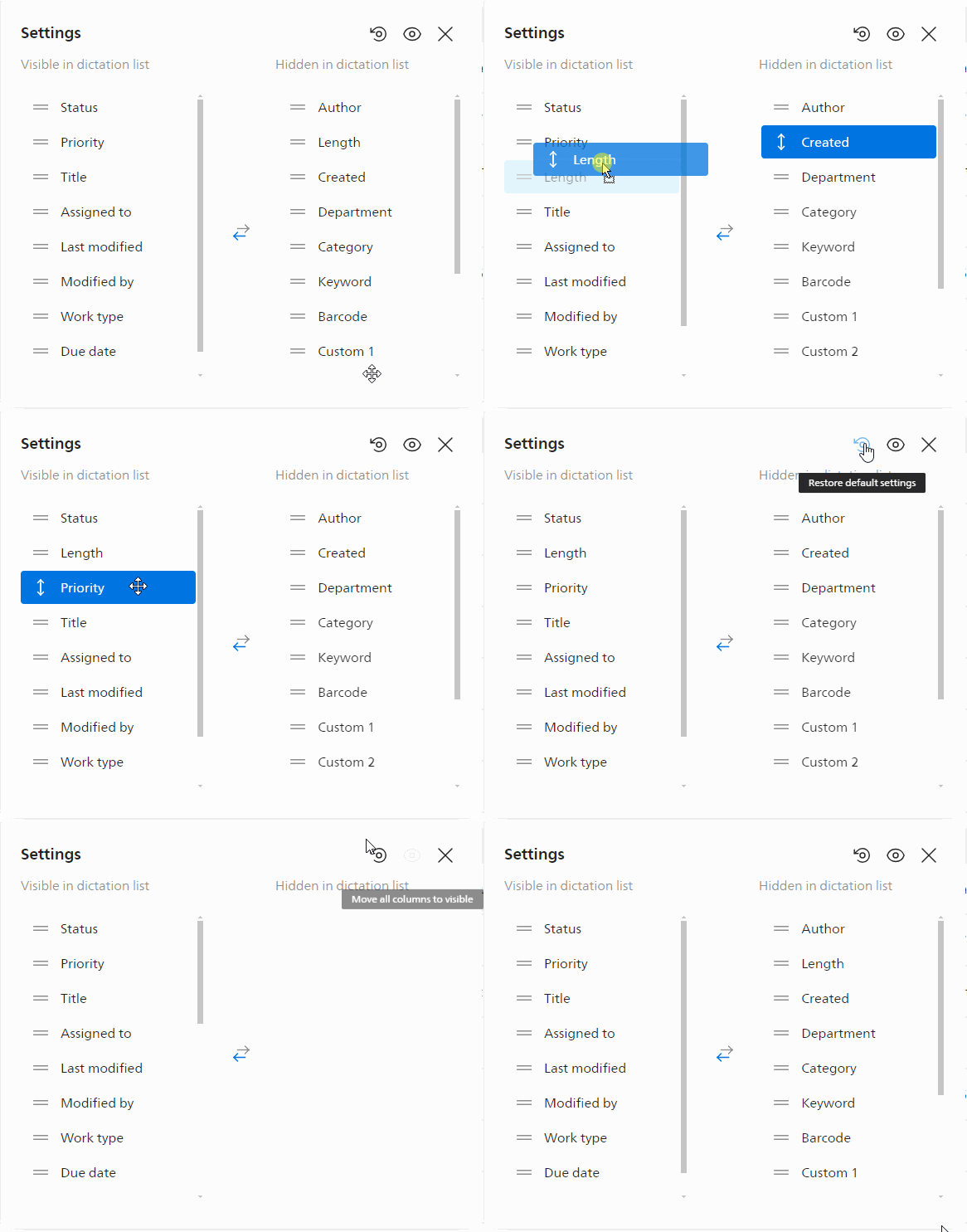
You can now manually drag and drop the columns as you need them:
Click
 to restore the default settings (this also resets the column width), or click
 to display all columns in the dictation list.
You can customize the order as well as the displayed columns in the dictation list:
On the dictation list screen, click on the
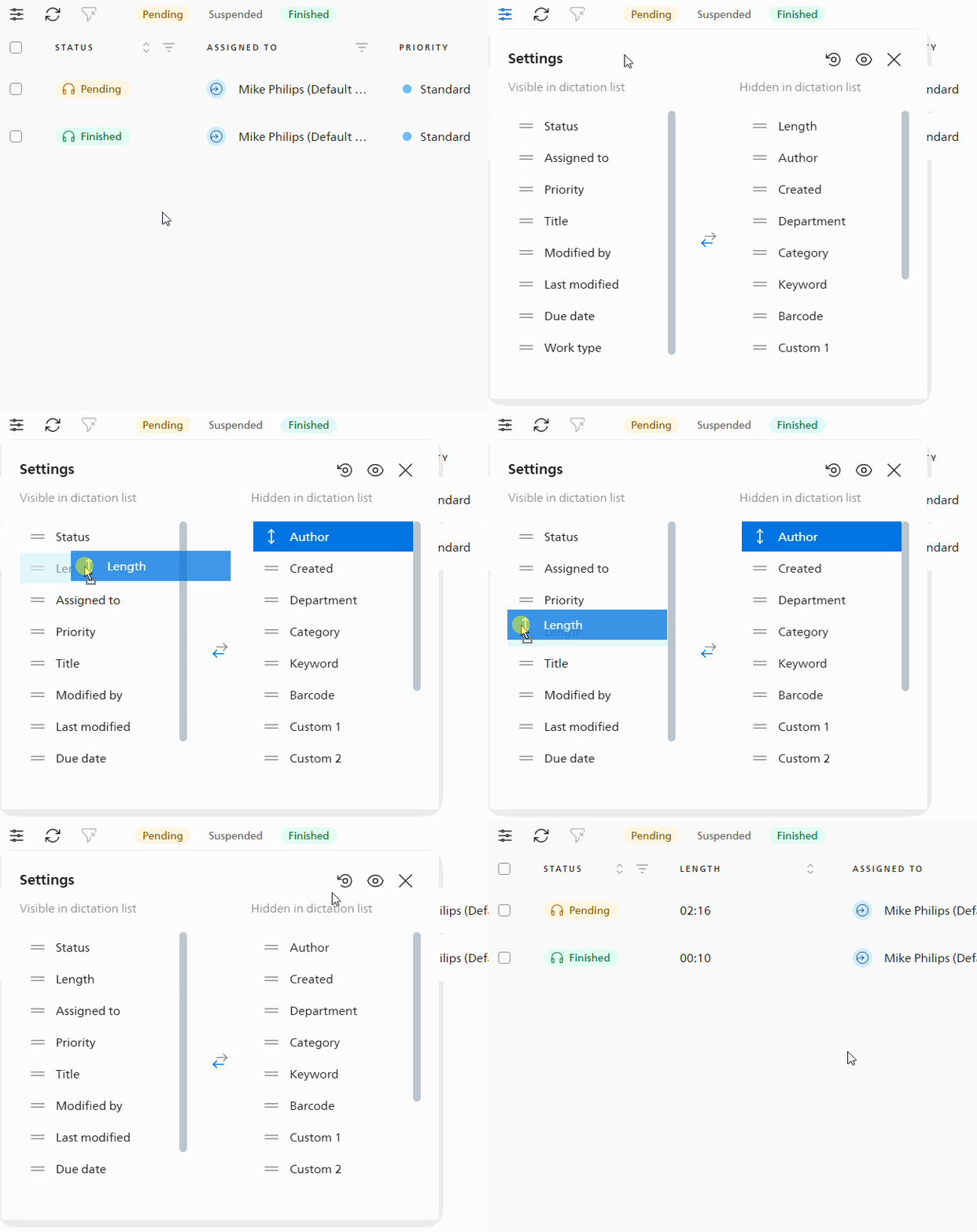
Settings icon in the upper left corner.Drag the Length column to the left to make it visible. The higher the column is in the list, the more to the left in the dictation list it will be.
Go to app.speechlive.com.
Sign in to SpeechLive.
When you see the dictation list, use the keyboard shortcut CTRL+D on Windows or CMD+D on Mac to bookmark the page.
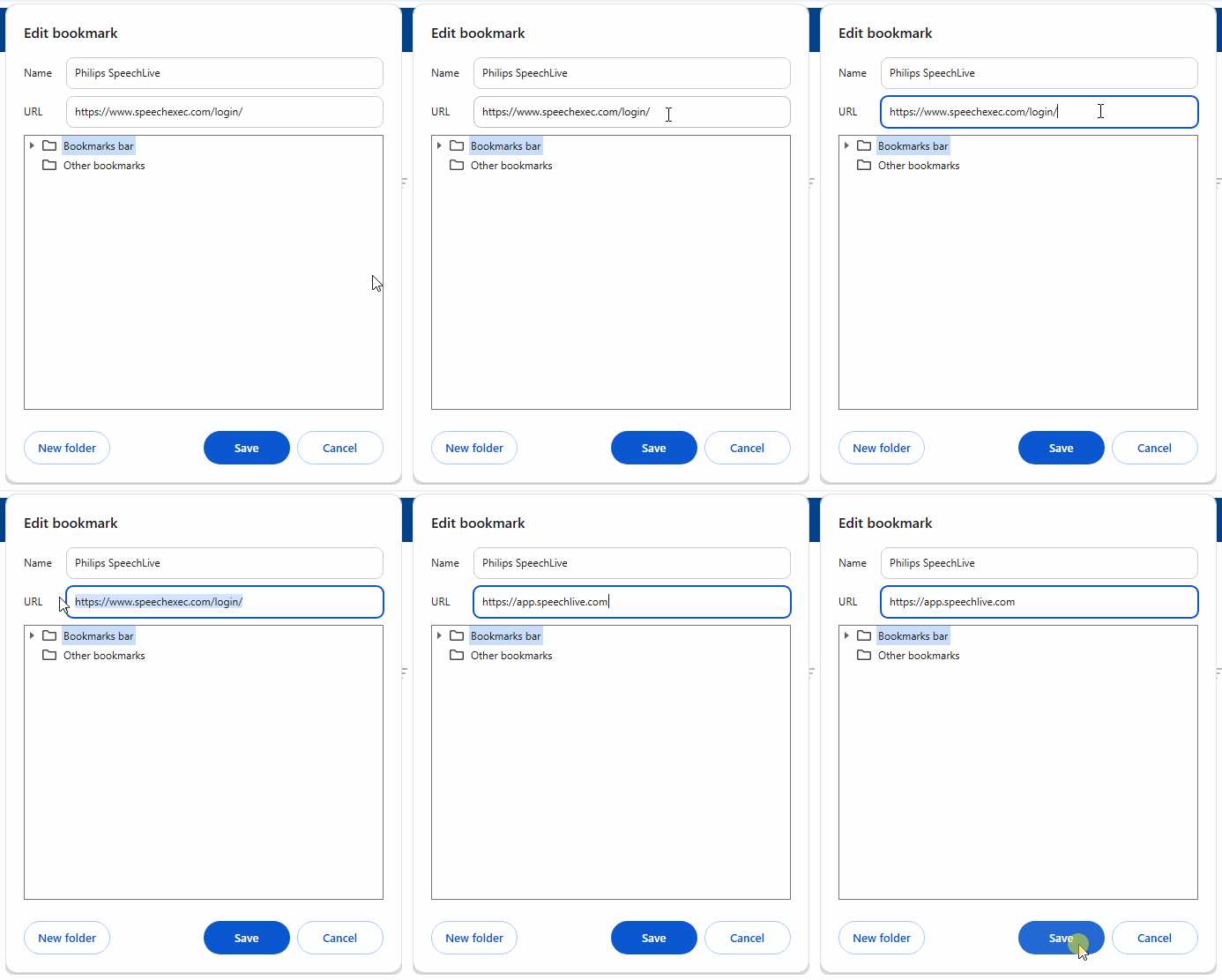
To update any outdated bookmarks or shortcuts:
Click on the menu of your browser in the upper right corner
 .
Choose Bookmarks and lists or Favorites if you're working in Microsoft Edge.
Locate your bookmark of SpeechLive Legacy, right click and choose Edit
A new window opens, in the URL section change the URL to https://app.speechlive.com
Click on the bell icon
 in the upper right corner next to your username.
Turn on the switch next to Sound.
You can additionally choose to only receive notifications if dictations have a specific priority.
Its also possible to turn off sound notifications during dictation playback to avoid any distractions during your work.
X If notifications are enabled, you will see the active bell icon in the top right corner ; if notifications are disabled, the icon is struck through  .
You can switch between different folders on the upper left side of the dictation list screen:
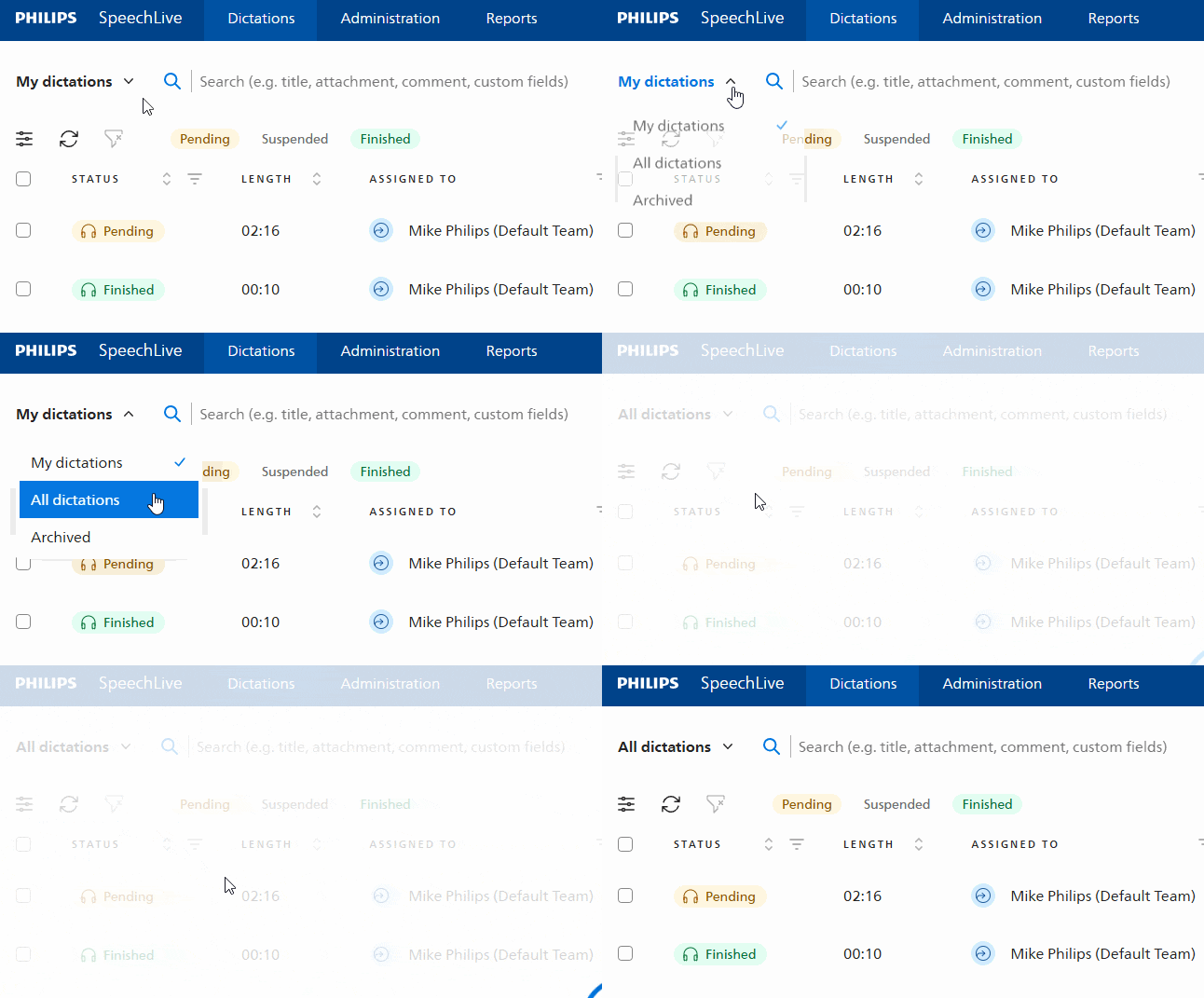
You can switch to the office manager view on the upper left side of the dictation list screen, by clicking on All dictations.
SpeechLive automatically assigns a file name to each dictation. The file name cannot be changed.
Authors and typists can manually change the title of a dictation.
Tutorial videos
We created some tutorial videos to help you getting started on how to use all the new functions and features of the new Web App.
How to install Philips Device Connector (PDC)
How to customize columns, sort, filter and use quick filters
Create and send a dictation via the Mobile App
How to use the sidebar as typist
Trim dictations in the Mobile App
Reassign dictations as office manager
Add and edit custom voice commands
How to install Philips Device Connector (PDC)
How to customize columns, sort, filter and use quick filters
Use SpeechLive as typist
Use SpeechLive as author
Create and send a dictation via the Mobile App
How to use the sidebar as typist
Trim dictations in the Mobile App
Reassign dictations as office manager
Add and edit custom voice commands
Set up iManage integration
How to install the DragonBar
Features of the new Web App
The new Web App offers many new features to further enhance the daily needs of the users, this includes:
Sidebar with workload information for typists
Pop-out player
Dragon speech recognition
Real-time updated dictation list
Reporting functionality
Split up dictations into smaller parts
Sound notifications, which are additionally customizable based on dictation priority
Highly customizable dictation list filters which are saved for the user
Automatic rerouting of dictations
Bulk functions (e.g. bulk deletion of dictations or reassignment)
Webhooks
iManage integration and other integrations already planned
In March we will also add Dragon Medical One integration, AI features and many more. For a general overview of all upcoming features, check the What's coming up section.
Visit What's new to see a detailed list of all new functions and features.
You can also visit the online help for the new Web App here: SpeechLive Online help