Use SpeechMike with Philips Device Connector
Google Chrome Browser (Windows, macOS) or Microsoft Edge (Windows) is required to use Philips Device Connector.
Make sure to use your devices (SpeechMike, SpeechOne) in Event Mode. This is the default out-of-the-box button mode, however if you changed the button mode of your device you can find more information in the Switch to Event mode section on how to switch it back.
X Continue to the full installation guide of the Philips Device Connector.
Control SpeechLive with your SpeechMike
After the setup is complete, you can control the web recorder with the following buttons of your SpeechMike:
The SpeechLive web recorder can be controlled with a SpeechMike with following buttons:
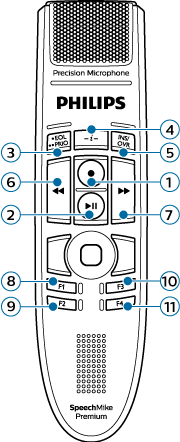
No. | Button description | Assigned function |
|---|---|---|
1 | Record | Record toggle Start a new dictation (when in dictation tab) |
2 | Play/Pause | Play/Pause |
3 | EOL | Finish dictation |
4 | -i- | - |
5 | INS/OVR | Insert/Overwrite/Append |
6 | << (Rewind) | Rewind |
7 | >> (Fast Forward) | Fast Forward |
8 | F1 | Jump to begin |
9 | F2 | Jump to end |
10 | F3 | - |
11 | F4 | - |
Note
When working in Browser mode the RECORD LED of the SpeechMike will always be off. Please use the record status display of the web recorder as your reference.
The SpeechLive web recorder can be controlled with a SpeechMike with following buttons:
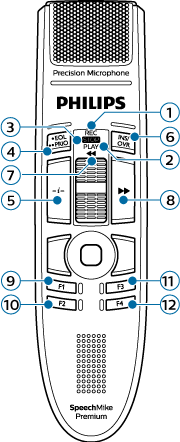
No. | Button description | Assigned function |
|---|---|---|
1 | Record | Record toggle Start a new dictation (when in dictation tab) |
2 | Play | Play/Pause |
3 | Stop | Stop |
4 | EOL | Finish dictation |
5 | -i- | - |
6 | INS/OVR | Insert/Overwrite/Append |
7 | << (Rewind) | Rewind |
8 | >> (Fast Forward) | Fast Forward |
9 | F1 | Jump to begin |
10 | F2 | Jump to end |
11 | F3 | - |
12 | F4 | - |
Note
When working in Browser mode the RECORD LED of the SpeechMike will always be off. Please use the record status display of the web recorder as your reference.