Use SpeechOne in Browser Mode
You have two options to set your SpeechOne to Browser Mode:
After you changed the SpeechOne to Browser Mode, you can control SpeechLive with the SpeechOne docking station, the SpeechOne headset or the SpeechOne remote control.
Note
A description on how to define the SpeechOne as your default recording device can be found in the chapter Problems with sound recording.
Make sure the docking station is not connected to your computer via the USB port for PC connection marked with
 on the docking station.
Make sure the docking station is powered, either by connecting it to your computer via the USB port marked with 5V DC on the docking station or optionally by connecting it to a power supply unit.
Make sure to use the latest Firmware for your SpeechOne.
Please see Upgrade the firmware of your dictation hardware section for more information on how to upgrade your SpeechOne.
Press the Phone button
 and the Do-not-disturb button
 on the docking station simultaneously for three seconds.
The battery LEDs on the docking station start flashing.

Press the Record button
 on the docking station repeatedly until you have reached the Browser mode.
The Browser mode is indicated as follows:

To confirm your selection of the Browser mode and exit mode selection, briefly press the Phone button
and the Do-not-disturb button on the docking station simultaneously.
Note
You can always check your current button mode by briefly pressing the Phone button
and the Do-not-disturb button on the docking station simultaneously.Your currently selected mode will be displayed immediately.
If the displayed mode does not match the Browser mode please change the mode as described above.
Press the End-of-letter/priority (•EoL/••Prio) button and the Insert/overwrite (INS/OVR) button simultaneously for three seconds.
All button LEDs on the remote control flash simultaneously.
Press the F3 button on the remote control for the Browser mode.
The SpeechOne exits the mode selection and switches to the selected mode.
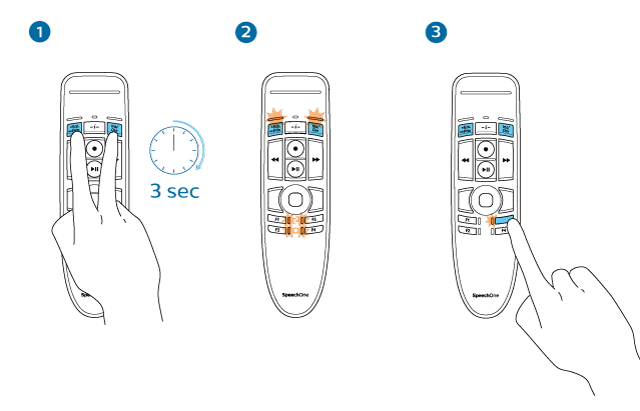
Note
You have 10 seconds to select a mode. After 10 seconds, you will automatically exit mode selection and need to restart the mode selection steps.
You can always check your current button mode by briefly pressing the End-of-letter/priority (•EoL/••Prio) button and the Insert/overwrite (INS/OVR) button simultaneously.
The LED assigned to the current mode shortly lights up orange, e.g. if the currently activated mode is the Browser mode, the LED of the F3 button lights up orange.
If the displayed mode does not match the Browser mode please change the mode as described above.
Control SpeechLive with your SpeechOne
After the setup is complete, you can control the web recorder with the following buttons of your SpeechOne:
In the SpeechLive web recorder you can start and stop recording by pressing the Record button on the docking station.
In the SpeechLive web recorder you can start and stop recording by pressing the scroll wheel Headset button.
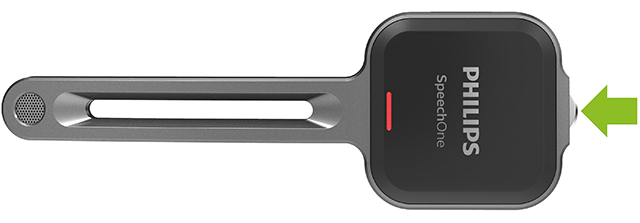
The SpeechLive web recorder can be controlled with a SpeechOne remote control with the following buttons:
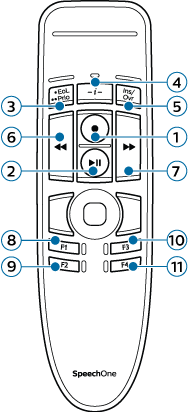
No. | Button description | Assigned function |
|---|---|---|
1 | Record | Record toggle |
2 | Play/Pause | Play/Pause |
3 | EOL | - |
4 | -i- | - |
5 | INS/OVR | Insert/Overwrite/Append |
6 | << (Rewind) | Rewind |
7 | >> (Fast Forward) | Fast Forward |
8 | F1 | Jump to begin |
9 | F2 | Jump to end |
10 | F3 | - |
11 | F4 | - |
Note
When working in Browser mode the RECORD LED of the SpeechOne remote control will always be off. Please use the record status display of the web recorder as your reference.